Andy in the Cloud

From BBC Basic to Force.com and beyond…


21 Comments

Building an Amazon Echo Skill with the Flow API

Screen Shot 2016-09-25 at 19.31.25.png
The Amazon Echo device sits in your living room or office and listens to your verbal instructions, much like Siri. It performs various activities. Such as fetching and relaying information and/or performing actions on your behalf. It also serves as a large bluetooth speaker. Now, after a run in the US, it has finally been released in the UK!

Why am i writing about it here? Well it has an API of course! So lets roll up our sleeves with an example i built recently with my FinancialForce colleague and partner in crime for all things gadget and platform, Kevin Roberts.

Kevin reached out to me when he noticed that Amazon had built this device with a means to teach it to respond to new phrases. Developers can extend its phrases by creating new Skills.You can read and hear more about the results over on FinancialForce blog site.

The sample code and instructions to reproduce this demo yourself are here. Also don’t worry if you do not have an Amazon Echo, you can test by speaking into your computer by using the EchoSim.io.

Custom Skill Architecture

To create a Skill you need to be a developer, capable of implementing a REST API endpoint that Amazon calls out to when the Echo recognizes a phrase you have trained it with. You can do this in practically any programming language you like of course, providing you comply with the documented JSON definition and host it securely.

lambda.pngOne thing that simplifies the process is hosting your skill code through the Amazon Lambda service. Lambda supports Java, Python and NodeJS, as well as setting up the security stack for you. Leaving all you have to do is provide the code! You can even just type your code in directly to developer console provided by Amazon.

Training your Skill

You cannot just say anything to Amazon Echo and expect it to understand, its clever but not that clever (yet!). Every Skill developer has to provide a set of phrases / sample utterances. From these Amazon does some clever stuff behind the scenes to compile these into a form its speech recognition algorithms can match a users spoken words to.

You are advised to provide as many utterances as you can, up 50,000 of them in fact! To cover as many varied ways in which we can say things differently but mean the same thing.  The sample utterances must all start with an identifier, known as the Intent. You can see various sample utterances for the CreateLead and GetLatestLeads intents below.

CreateLead Lets create a new Lead
CreateLead Create me a new lead
CreateLead New lead
CreateLead Help me create a lead
GetLatestLeads Latest top leads?
GetLatestLeads What are our top leads?

Skills have names, which users can search for in the Skills Marketplace, much like an App does on your phone. For Skill called “Lead Helper” users would speak the following phrases to invoke any of its intents.

  • “Lead Helper, Create me a new lead”
  • “Lead Helper, Lets create a new lead”
  • “Lead Helper, Help me create a lead”
  • “Lead Helper, What are our top leads?”

Your sample utterances can also include parameters / slots.

DueTasks What tasks are due for {Date}?
DueTasks Any tasks that are due for {Date}?

Slots are essentially parameters to your Intents, Amazon supports various slot types. The date slot type is quite flexible in terms of how it handles relative dates.

  • “Task Helper, What tasks are due next thursday?”
  • “Task Helper, Any tasks that are due for today?”

Along with your sample utterances you need to provide an intent schema, this lists the names of your intents (as referenced in your sample utterances) and the slot names and types. Further information can be found in Defining the Voice Interface.

{
  'intents': [
    {
      'intent': 'DueTasks',
      'slots': [
        {
          'name': 'Date',
          'type': 'AMAZON.DATE';
        }
      ]
    }
  ]
}

Mapping Skill Intents and Slots to Flows and Variables

As i mentioned above, Skill developers implement a REST API end point. Instead of receiving the spoken words as raw text, it receives the Intent name and name/value pair of Slot names and values. That method can then invoke the appropriate database query or action and generate a response (as a string) to response back to the user.

To map this to Salesforce Flows, we can consider the Intent name as the Flow Name and the Slot name/values as Flow Input Parameters. Flow Output Parameters can be used to generate the spoken response to the user. For the example above you would define a Flow called DueTasks with the following named input and output Flow parameters.

  • Flow Name: DueTasks
  • Flow Input Parameter Name:  Alexa_Slot_Date
  • Flow Output Parameter Name:  Alexa_Tell

You can then basically use the Flow Assignment element to adjust the variable values. As well as other elements to query and update records accordingly. By using an output variable named Alexa_Tell  before your Flow ends, you end the conversation with a single response contained with the text variable.

For another example see the Echo sample here, this one simply repeats “echo’s” the name given by the user when they speak a phrase with their name in it.
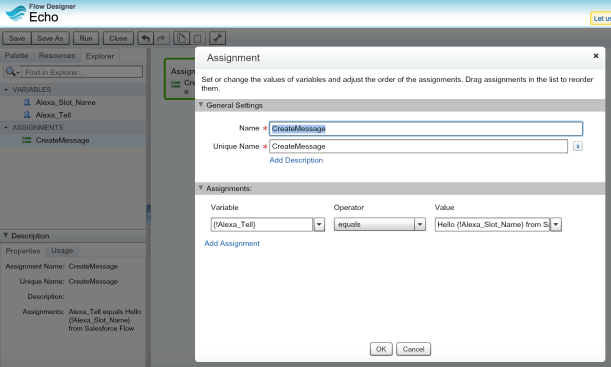
EchoFlow.png

The sample utterances and intent schema are shown below. These utterances also use a literal slot type, which is a kind of picklist with variable possibilities. Meaning that Andrew, Sarah, Kevin and Bob are just sample values, users can use other words in the Name slot, it is up to the developer to validate them if its important.

Echo My name is {Andrew|Name}
Echo My name is {Sarah|Name}
Echo My name is {Kevin|Name}
Echo My name is {Bob|Name}
{
  'intents': [
    {
      'intent': 'Echo',
      'slots': [
        {
          'name': 'Name',
          'type': 'LITERAL'
        }
      ]
    }
  ]
}

Alternatively if create and assign the Alexa_Ask variable in your Flow, this starts a conversation with your user. In this case any Input/Output Flow Parameters are retained between Flow calls. Finally if you suffix any slot name with Number, for example a slot named AmountNumber would be Alexa_Slot_AmountNumber, this will ensure that the value gets converted correctly to pass to a Flow Variable of type Number.

The design for managing conversations with Flow Input/Output variables was inspired by an excellent article on defining conversations in Alexa Skills here.

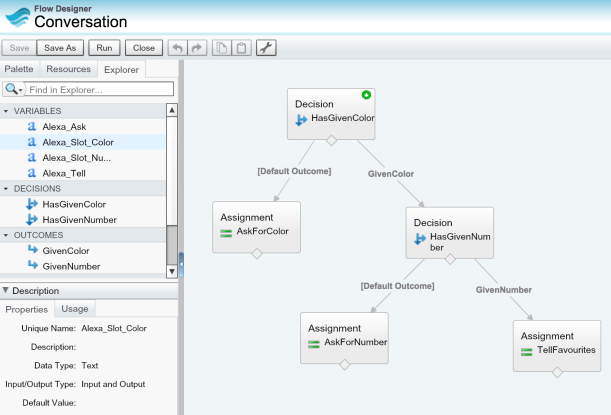
The following phrases are for the Conversation Flow included in the samples repository.

Conversation About favourite things
Conversation My favourite color is {Red|Color}
Conversation My favourite color is {Green|Color}
Conversation My favourite color is {Blue|Color}
Conversation My favourite number is {Number}
Screen Shot 2016-09-25 at 21.39.09.png

NodeJS Custom Skill

nodejs-new-pantone-black.pngTo code my Skill I went with NodeJS, as i had not done a lot of coding in it and wanted to challenge myself. The other challenge i set myself was to integrate in a generic and extensible way with Salesforce. Thus i wanted to incorporate my old friend Flow!

With its numerous elements for conditional logic, reading and updating the database. Flow is the perfect solution to integrating with Salesforce in the only way we know how on the Salesforce platform, with clicks not code! Now of course Amazon does not talk Flow natively, so we need some glue!

Amazon provide NodeJS developers a useful base class to get things going. In NodeJS this is imported with the require function (interesting “how it works” article). In my case i also leveraged the most excellent nforce library from Kevin O’Hara.

var AlexaSkill = require('./AlexaSkill');
var nforce = require('nforce');

/**
* SalesforceFlowSkill is a child of AlexaSkill.
* To read more about inheritance in JavaScript, see the link below.
*
* @see https://developer.mozilla.org/en-US/docs/Web/JavaScript/Introduction_to_Object-Oriented_JavaScript#Inheritance
*/
var SalesforceFlowSkill = function () {
    AlexaSkill.call(this, APP_ID);
};

The AlexaSkill base class exposes four methods you can override, onSessionStartedonLaunchonSessionEnded and onIntent. As you can see from the method names, requests to your skill code can be scoped in a session. This allows you to manage conversations users can have with the device. Asking questions and gathering answers within the session that build up to perform a specific action.

I implemented the onIntent method to call the Flow API.

SalesforceFlowSkill.prototype.eventHandlers.onIntent =
   function (intentRequest, session, response) {
       // Handle the spoken intent from the user
       // ...
   }

Calling the Salesforce Flow API from NodeJS

Within the onIntent method I used the nforce library to perform oAuth user name and password authentication for simplicity. Though Alexa Skills do support the oAuth web flow by linking accounts. The following code performs the authentication with Salesforce.

SalesforceFlowSkill.prototype.eventHandlers.onIntent =
    // Configure a connection
    var org = nforce.createConnection({
        clientId: 'yourclientid',
        clientSecret: 'yoursecret',
        redirectUri: 'http://localhost:3000/oauth/_callback',
        mode: 'single'
    });
    // Call a Flow!
    org.authenticate({ username: USER_NAME, password: PASSWORD}).
        then(function() {

The following code, calls the Flow API, again via nforce. It maps the slot name/values to parameters and returning any Flow output variables back in the response. A session will be kept open when the response.ask method is called. In this case any Input/Output Flow Parameters are retained in the Session and passed back into the Flow again.

// Build Flow input parameters
var params = {};
// From Session...
for(var sessionAttr in session.attributes) {
    params[sessionAttr] = session.attributes[sessionAttr];
}
// From Slots...
for(var slot in intent.slots) {
    if(intent.slots[slot].value != null) {
        if(slot.endsWith('Number')) {
            params['Alexa_Slot_' + slot] = Number(intent.slots[slot].value);
        } else {
            params['Alexa_Slot_' + slot] = intent.slots[slot].value;
        }
    }
}
// Call the Flow API
var opts = org._getOpts(null, null);
opts.resource = '/actions/custom/flow/'+intentName;
opts.method = 'POST';
var flowRunBody = {};
flowRunBody.inputs  = [];
flowRunBody.inputs[0] = params;
opts.body = JSON.stringify(flowRunBody);
org._apiRequest(opts).then(function(resp) {
    // Ask or Tell?
    var ask = resp[0].outputValues['Alexa_Ask'];
    var tell = resp[0].outputValues['Alexa_Tell'];
    if(tell!=null) {
        // Tell the user something (closes the session)
        response.tell(tell);
    } else if (ask!=null) {
       // Store output variables in Session
       for(var outputVarName in resp[0].outputValues) {
           if(outputVarName == 'Alexa_Ask')
               continue;
           if(outputVarName == 'Alexa_Tell')
               continue;
           if(outputVarName == 'Flow__InterviewStatus')
               continue;
            session.attributes[outputVarName] =
               resp[0].outputValues[outputVarName];
       }
       // Ask another question (keeps session open)
       response.ask(ask, ask);

Summary

I had lot of fun putting this together, even more so seeing what Kevin did with it with his Flow skills (pun intended). If you have someone like Kevin in your company or want to have a go yourself, you can follow the setup and configuration instructions here.

I would also like to call out that past Salesforce MVP, now Trailhead Developer Advocate Jeff Douglass started the ball rolling with his Salesforce CRM examples. Which is also worth checking out if you prefer to build something more explicitly in NodeJS.



5 Comments

Lightning Out: Components on Any Platform

This blog is my first video blog! Since Salesforce does not record the Developer Theatre sessions at the Salesforce World Tour events i thought i would do a re-run at home of my session last week and publish it here. As you know i have a love for all things API’s, and while I typically focus in this blog on backend API’s, there is one i’ve been keen to explore for a while…

The Lightning Out API, as any good API should, brings great promise and reality i’m pleased to say, to further integrating and extending the power of the platform and generally simplifying our users lives. In this case boldly going where no Lightning Component has gone before….

You can access the slides and thus the links within via this Slideshare upload.


17 Comments

Introduction to the Platform Action API

shutterstock_159003926.jpg

Actions are Salesforce’s general term for tasks users can perform either through buttons throughout various UI’s on desktop, mobile, tablet etc or in fact via non-UI processes such those built via via Process Builder or Automation Flows.

Actions are about “getting things done” in Salesforce. They encapsulate a piece of logic that allows a user to perform some work, such as sending email. When an action runs, it saves changes in your organization by updating the database. More here.

Over the years we’ve had many terms and ways to define these. Custom Button and Custom Link are perhaps the most obvious ones, which i’ve covered here in the past. Quick Actions (previously Publisher Actions) and more recently we’ve had Action Link‘s, which i covered in a past blog. Then of course the Standard Buttons, Edit, Delete, Follow, Submit for Approval etc provided by the platform. Such actions appear in various places Record layouts, List Views, Related Lists, Chatter and more recently Flexi Pages (aka Lighting Pages).

You might wonder then, if you had the task as developer to build your own UI or tool that wanted to expose some or all of the above actions, it would be quite a challenge to find them all. Indeed in some cases you may have had to resort to URL hacking to invoke some of them. Well worry not no longer, Salesforce’s clever architects now have you covered! Enter a new virtual SObject known as PlatformAction! Before we get onto what exactly virtual means, lets review some Actions and some SOQL queries…

Consider this Account Record detail page in the Classic (or Aloha) UI

PlatformActionAccount.png

Note down your record ID and use it in a query like the one below…

SELECT DeviceFormat, Label, Type, Section,
       ActionTarget, ActionTargetType, ActionListContext
  FROM PlatformAction
  WHERE ActionListContext = 'Record' AND
        SourceEntity = '001B000000D2V0n' AND
        Section = 'Page' AND
        DeviceFormat = 'Aloha'

In Developer Console you should see something like this…

PlatformActionQueryResults1.png

Pretty cool huh!? Check out the ActionTarget field, for the Standard Button records, thats the URL you can place on your UI’s to invoke that action, simple as that! Better still this is a supported way to get it, no more URL hacking! Now lets add a couple of Custom Buttons and re-run the query…

PlatformActionAcount2.png

We now see CustomButton records appear…

PlatformActionQueryResults2.png

This next query reveals actions shown on a List View. I did note Custom List View buttons that require record selection did not appear however. I suspect this is due to them requiring more than a simple HTTP GET URL to invoke.

SELECT DeviceFormat, Label, Type, Section,
       ActionTarget, ActionTargetType, ActionListContext
  FROM PlatformAction
  WHERE ActionListContext = 'ListView' AND
        SourceEntity = 'Account' AND
        Section = 'Page' AND
        DeviceFormat = 'Aloha'

Other observations..

  • Prior to Summer’16 (out in preview as i write this), Apex SOQL was not supported, only REST API SOQL. This is due to a limitation with the internally applied LIMIT keyword. This has now been resolved in Summer’16, so Apex SOQL now works!
  • SourceEntity can also be given an SObject API name, e.g. SourceEntity = ‘Account’, the result here are object level buttons, like New or those you add to the MRU page.
  • DeviceFormat field value matters, if you leave it off, it defaults to Phone. Thus some actions will be missing from those in Desktop (Lightning Experience) or Aloha (Classic). I eventually found Custom Buttons using Visualforce pages that didn’t have the Lightning Supported checkbox set didn’t appear when querying with the Phone device type for example.
  • User context matters, actions returned are user and configuration sensitive, meaning the record itself, record type and associated layout all contribute to the actions returned. Custom Buttons for example need to be on the relevant layout.
  • Label and Icon information, there are also fields that allow you to render appropriate labels and icons for the actions.
  • Related List actions, you can also retrieve actions shown on related lists, search for RelatedList in the help topic here.
  • Describe actions? You will notice some actions have an ActionTargetType of Describe? These are invoked via an API, something i will cover in later blog.

So lets discuss the “virtual SObject” bit!?!

Your probably wondering what a virtual SObject is?

Well my best guess is its an SObject that is not backed by physical data in the Salesforce database. If you check the documentation you’ll see fields just like any other object and it supports SOQL (with some limitations). My thinking is the records for this object are dynamically generated on demand by doing all the heavy lifting internally to scan all the various historic places where actions have been defined.

Thank you Salesforce architects, this is now my #1 coolest Salesforce API!

Whats next?

  • For starters, no more URL hacking of those standard pages, no excuses now!
  • Helper class or Visualforce and/or Lighting component for actions?
  • Explore the Force.com Actions Developer Guide


6 Comments

Monitoring Record Activity via Data Replication API’s

ReplicateAPI.pngYou might be thinking having started to read this blog that the primary use case of Data Replication API’s is to provide replication, well yes and no! No in a sense it won’t replicate your data for you, it actually won’t even return your data. What it will do is tell you what record Id’s have been updated or deleted within a certain time frame. What happens next is up to you, you don’t even have to do any replication if you don’t want to!

As someone who loves to keep things as native as possible, when answering this StackExchange post, i found it quite cool to find that this API is actually available to Apex developers! The API consist of two Database class methods getUpdated and getDeleted. The former returns new and updated records, its up to you to decide if its a new record or existing depending on if you’ve seen the record Id before or not.

Note: The process around these API’s is explained in more detail in the SOAP Developers Guide, so its worth reading this along with the Apex Developers Guide references. The general polling process is described here and limits and considerations here.

The API’s could not be easier to use, the following shows how to pull a list of record Id’s for updates made to records for a given object in the last hour.

Database.GetUpdatedResult r =
  Database.getUpdated(
    'MyObject__c', Datetime.now().addHours(-1), Datetime.now());
LastDateCovered.png

Salesforce documentation relating to the latestDateCovered field

Neither methods appear to consume any query or DML governor limits, though as noted above have some limits of their own. The GetUpdatedResult (described in more detail in the SOAP API documentation) contains a latestDateCovered field. This value should be retained and used in subsequent getUpdated calls.

Its unclear what Salesforce means by safety in the documentation, though the note relating to long running batch processes does make sense. This aspect highlights a key difference between attempting to query whats changed yourself based on the audit fields. The getDeleted method also works in the same way.

Its worth considering these API’s as a possible and lighter alternative to using Apex Triggers or UI’s to invoke custom behaviour when records are manipulated. Unlike Triggers you don’t know the specific changes, though Field Audit information could be queried if needed.

So be it a replication to another cloud via an Apex HTTP Callout or simply monitoring record activity into some org wide stats. Having Apex support allows you to keep things native via an Apex Schedule job to poll this API as often as you wish. With the advent of External Objects aka Lightning Connect other native possibilities start to present themselves…


30 Comments

Setup Audit Trail API in Winter’16

Winter’16 was a bit low on API for me, but one thing i just found hiding in the New Objects section, was this…

SetupAuditTrail, “Represents changes you or other administrators made in your organization’s Setup area.”

WBAuditWow, this is a BIG thing and opens up a lot of tooling and greater compliance support for changes around orgs. Prior to this, folks where so keen to get hold of this information programatically they would resort to web scraping it from the Salesforce Setup menu!  So I set about giving it a spin via Developer Workbench and learning more about the object.
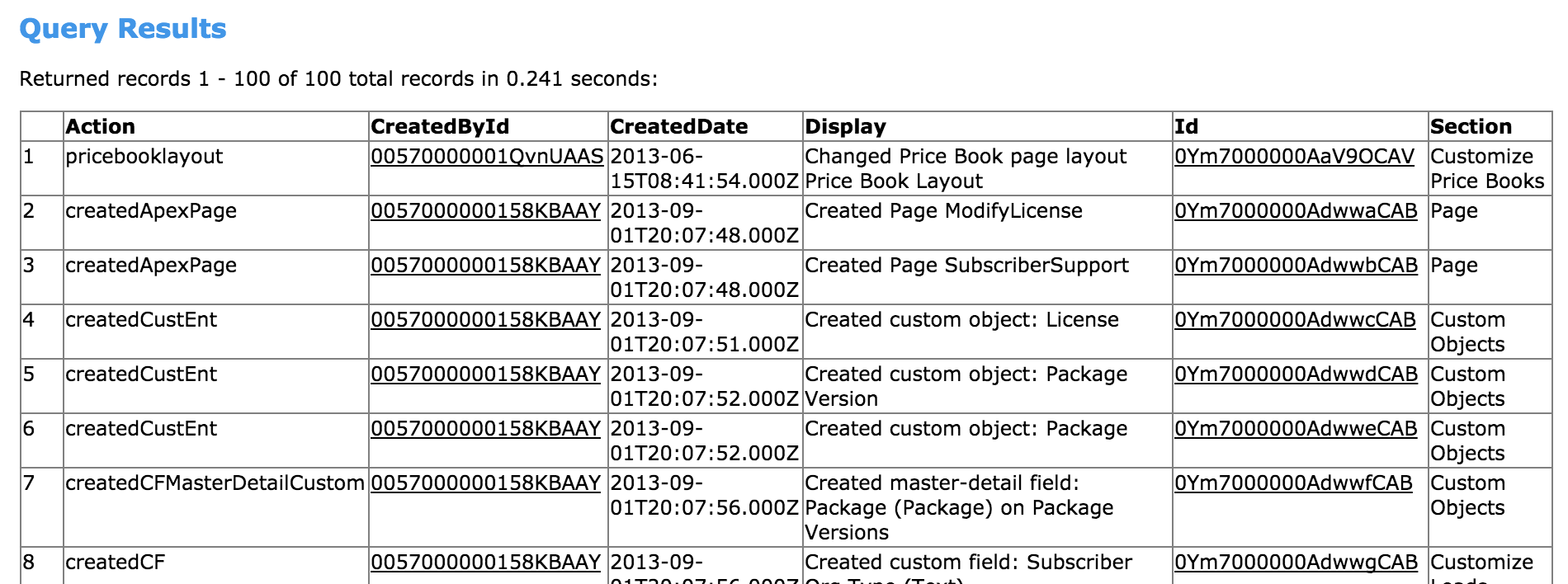
WBAuditResults

There is also much better data export support via tools such as DataLoader.io (and of course other tools)….

AuditDataLoaderIO

So in addition to Salesforce API’s (used by the above tools), it is also available via Apex SOQL! The following selects all audit records relating to users from a certain email domain.

List<SetupAuditTrail> stuffDoneByConsultants = 
    [SELECT Id,
     	Action,
     	CreatedBy.Name,
     	CreatedDate,
     	Display,
     	Section 
     FROM SetupAuditTrail 
     WHERE CreatedBy.Email LIKE '%xyzconsulting.com%'];

So what else can we do with it? Well… not a lot more sadly, doing an Apex Describe shows that its basically only query-able, no triggers, replication API or indeed streaming API, which while not a total surprised would have been very cool!

Age of Records?

Through the long standing CSV download facility under setup, only 6 months worth of data is available. However running queries in my various long standing orgs i’m seeing data going back as far as all time?!? Although there is no documentation to confirm, and i would honestly would not be surprised to see some limit here, perhaps those of you running long standing production orgs can confirm via the comments below?

What are its fields?

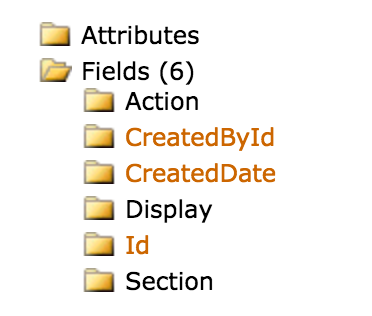
AuditFieldsAs you can see the SetupAuditTrail objects fields are not the most ideal to interpret the data, aside from CreatedBy field (which supports relationship walking to the User object). The most interesting are Action, Section and Display, the later is the one that actually contains the object, field, layout or whatever has changed. The challenge here is its embedded in a message and not called out separately, so there is a bit of parsing to be done here.

IMPORTANT NOTE: The only gap i can see so far is the Delegate User (found in the Setup UI and CSV download) appears to be missing from the API at the moment. Yet it is documented as follows… ‘The Login-As user who executed the action in Setup. If a Login-As user didn’t perform the action, this field is blank.’

So what next?

  • Well i see AuditForce is an example of application tool that was created to better report and dashboard on this information, this tool could be enhanced to use this API now and remove the current web scraping hack the developer (Daniel Peter) was forced to utilise back then.
  • With Apex support its also possible to write Apex Scheduled jobs that periodically scan for certain updates and apply your own rules and notifications.
  • I was thinking it might also be useful to have a nice Lighting Component perhaps?
  • The Setup UI does not permit filtering or even sorting, it would probably not require to much coding to get something like the excellent Data Table component show results of queries from this object (as featured in my List View API blog).
  • Finally given this is available from Salesforce REST API, its also feasible to aggregate into a single console audit information from say multiple sandboxes (something Daniel hints at in his AuditForce blog).


Leave a comment

Using Action Link Templates to Declaratively call API’s

ActionLinkSetupSalesforce recently introduced a new platform feature which has now become GA called Action Link Templates. Since then its been staring me in the face and bugging me that i didn’t quite understand them until now…

While there is quite a lot of information in the Salesforce documentation, i was still a bit lost as to what even an Action Link was. It turns out that they are a means to define actions that can appear in a Chatter Post to call external or Salesforce web based API’s. Thus allowing users to do more without leaving their feed.

After realising its a means to link user actions with API’s. I could not resist exploring further with one my favourite external API’s, from LittleBits. The LittleBits cloud API can be used with cloud connected devices constructed by snapping together modules.

The following shows a Chatter Post i created with an Action Link button on it that without any code calls the LittleBits API to cause my device to perform an action. You can read more about my past exploits with Littlebits devices and Salesforce here.

ActionLinkPrimary

It appears for now at least, that such Chatter Posts need to be programatically created and as such lend themselves to integration use cases. While it is possible to create Chatter Posts with Action Links in code without using a template, thats more coding, and doesn’t encourage reuse of Action Link definitions which can also be packaged btw. So this blog focuses, as always on the best practice of balancing the best of declarative with minimal of coding to create the post itself. So first of all lets get some terminology out of the way…

  • Action Link, can actually be rendered as a button or a menu option that appears inline in the chatter post or in the overflow menu on the post. The button can either call an API, redirect to another web site or offer to download a file for the user. You have to add a Action Link to an Action Link Group before you can add it to a Chatter post.
  • Action Link Group, is a collection of one or more Action Links. The idea is the group presents a collection of choices you want to give to the user, e.g Accept, Decline. You can define a default choice, though the user can only pick one. Think of it like a group of radio controls or a choices type UI element. As mentioned above you can create both these 100% in code if you desire.
  • Action Link Group Template, is as the name suggests similar to the above, but allows for declarative definition and then programatic application of the buttons to be separated out. Once you start defining Action Links you’ll see they require a bit of knowledge about the underlying API. So in addition to the reuse benefit, a template is a good way to have someone else or package developer do that work for you. In order to make them generic, you can define place holders in Action Links, called bindings, that allow you to vary the information passed to the underlying API being called.

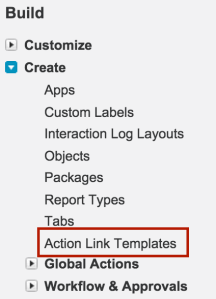
To define an Action Link you need to create the Action Link Group. Because we are using a template, this can be done using point and click. Under the Setup menu, under Create, you’ll find Action Link Templates, click New.

ActionLinkGroup

The Category field allows you to determine where the Action Link appears, in the body of the feed by selecting Primary action (as shown in the screenshot above) or in the overflow menu by selecting Overflow action, as shown in the screenshot below. Note that my example only defines one Action Link, you can define more.

ActionLinkOverflow

Through the Executions Allowed field, you can also determine if the Action Link can be invoked only once (first come first served) or once by each user who can see the chatter post (for example a chatter post to a group). You can read more about these and other fields here.

Your now ready to add an Action Link to the template, first study the documentation of your chosen web API, not that it can in theory be a SOAP based API, though REST is generally simpler. Hopefully, like the LittleBits API there are some samples that you can copy and paste to get you started. The following extract is what the LittleBits API documentation has to say about the API to control (output to) a device

This outputs 10% amplitude for 10 seconds:

curl -XPOST https://api-http.littlebitscloud.cc/devices/a84hf038ierj/output 
-H ‘Authorization: Bearer TOKEN’ 
-H ‘Accept: application/vnd.littlebits.v2+json’ 
–data ‘{“percent”:10,”duration_ms”:10000}’
“OK”

REST API documentation often uses a command line program called curl as an easy way to try out the API without having to write program code. In the screenshot below you can see how the curl parameters used in the extract above have been mapped to the fields when defining an Action Link. Note also that i have used the {!Bindings.var} syntax to define variable aspects, such as the deviceId, accessToken, percent and durationMs.

ActionLinkLittleBits

NOTE: The User Visibility setting is quite flexible and allows you to control who can actually press the button, as apposed to those who can actually see the Chatter Post.

Go back to your Action Link Group Template and check the Published checkbox. This makes it available for use when creating posts, but also has the effect of making certain aspects read only, such as the bindings. Though you can thankfully continue to tweak the API header and body templates defined on the Action Links.

Execute from Developer Console the following and it will create the Chatter Post shown in above. Currently neither Process Builder or Visual Flow are yet to support Action Link Templates when creating Chatter posts, which gives me an idea for a part two to this blog actually! For now please up vote this idea and review the following code.

// Specify values for Action Link bindings
Map<String, String> bindingMap = new Map<String, String>();
bindingMap.put('deviceId', 'yourdeviceid');
bindingMap.put('accessToken', 'youraccesstoken');
bindingMap.put('percent', '50');
bindingMap.put('durationMs', '10000');
List<ConnectApi.ActionLinkTemplateBindingInput> bindingInputs = new List<ConnectApi.ActionLinkTemplateBindingInput>();
for (String key : bindingMap.keySet()) {
    ConnectApi.ActionLinkTemplateBindingInput bindingInput = new ConnectApi.ActionLinkTemplateBindingInput();
    bindingInput.key = key;
    bindingInput.value = bindingMap.get(key);
    bindingInputs.add(bindingInput);
}

// Create an Action Link Group definition based on the template and bindings
ActionLinkGroupTemplate template = [SELECT Id FROM ActionLinkGroupTemplate WHERE DeveloperName='LittleBits'];
ConnectApi.ActionLinkGroupDefinitionInput actionLinkGroupDefinitionInput = new ConnectApi.ActionLinkGroupDefinitionInput();
actionLinkGroupDefinitionInput.templateId = template.id;
actionLinkGroupDefinitionInput.templateBindings = bindingInputs;
ConnectApi.ActionLinkGroupDefinition actionLinkGroupDefinition =
    ConnectApi.ActionLinks.createActionLinkGroupDefinition(Network.getNetworkId(), actionLinkGroupDefinitionInput);
System.debug('Action Link Id is ' + actionLinkGroupDefinition.actionLinks[0].Id);

// Create the post and utilise the Action Link Group created above
ConnectApi.TextSegmentInput textSegmentInput = new ConnectApi.TextSegmentInput();
textSegmentInput.text = 'Click to Send to the Device.';
ConnectApi.FeedItemInput feedItemInput = new ConnectApi.FeedItemInput();
feedItemInput.body = new ConnectApi.MessageBodyInput();
feedItemInput.subjectId = 'me';
feedItemInput.body.messageSegments = new List<ConnectApi.MessageSegmentInput> { textSegmentInput };
feedItemInput.capabilities = new ConnectApi.FeedElementCapabilitiesInput();
feedItemInput.capabilities.associatedActions = new ConnectApi.AssociatedActionsCapabilityInput();
feedItemInput.capabilities.associatedActions.actionLinkGroupIds = new List<String> { actionLinkGroupDefinition.id };

// Post the feed item.
ConnectApi.FeedElement feedElement =
    ConnectApi.ChatterFeeds.postFeedElement(
        Network.getNetworkId(), feedItemInput, null);

If you review the debug log produced the above code will output the Action Link Id. This can be used to retrieve response information from the Web API called. This is especially useful if the Web API callout failed, as only a generic failure message is shown to the end user. Once you have the Action Link Id paste the following code into Developer Console and review the debug log for the Web API response.

ConnectApi.ActionLinkDiagnosticInfo diagInfo =
    ConnectApi.ActionLinks.getActionLinkDiagnosticInfo(
        Network.getNetworkId(), '0AnG0000000Cd3NKAS');
System.debug('Diag output ' + diagInfo.diagnosticInfo);

Summary

Its true that Chatter Actions (formally Publisher Actions) are another means to customise the user experience of Chatter Posts, however these require development of Visualforce pages or Canvas applications. However by using Action Links you can provide a simpler platform driven user experience with much less coding.

By using Action Link Group Templates you can separate the concerns of delivering an integration, between those who know the external API’s and those that are driving the integration with Chatter via chatter posts referencing them. The bindings form the contract between the two.

Its also worth noting the Apex REST API‘s can be used from Action Links as well as other Salesforce API’s, in this case the authentication is handled for you, nice!


24 Comments

Extending Lightning Process Builder and Visual Workflow with Apex

MyProcessBuilderI love empowering as many people to experience the power of Salesforce’s hugely customisable and extensible platform as possible. In fact this platform has taught me that creating a great solution is not just about designing how we think a solution would be used, but also about empowering how others subsequently use it in conjunction with the platform, to create totally new use cases we never dream off! If your not thinking about how what your building sits “within” the platform your not fully embracing the true power of the platform.

So what is the next great platform feature and what has it go to do with writing Apex code? Well for me its actually two features, one has been around for a while, Visual Workflow, the other is new and shiny and is thus getting more attention, Lightning Process Builder. However as we will see in this blog there is a single way in which you can expose your finely crafted Apex functionality to users of both tools. Both of them have their merits and in fact can be used together for a super charged clicks not code experience!

IMPORTANT NOTE: Regardless if your developing building a solution in a Sandbox or as part of packaged AppExchange solution, you really need to understand this!

What is the difference between Visual Workflow and Lightning Process Builder?

At first sight these two tools look to achieve similar goals, letting the user turn a business process into steps to be executed one after another applying conditional logic and branching as needed.

One of the biggest challenges i see with the power these tools bring is educating users on use cases they can apply. While technically exposing Apex code to them is no different, its important to know some of the differences between how they are used when talking to people about how to best leverage them with your extensions.

  • UI based Processes. Here the big difference is that mainly, where Visual Workflow is concerned its about building user interfaces that allow users to progress through your steps through a wizard style UI, created by the platform for you based on the steps you’ve defined. Such UI’s can be started when the end user clicks on a tab, button or link to start the Visual Workflow (see my other blogs).
    VisualFlowUI
  • Record based Processes. In contrast Process Builder is about steps you define that happen behind the scenes when users are manipulating records such as Accounts, Opportunities an in fact any Standard or Custom object you choose. This also includes users of Salesforce1 Mobile and Salesforce API’s. As such Process Builder actually has more of an overlap with the capabilities of classic Workflow Rules.
    ProcessBuilderActions
  • Complexity. Process Builder is more simplistic compared to Flow, that’s not to say Flow is harder to use, its just got more features historically, for variables, branching and looping over information.
  • Similarities. In terms of the type steps you can perform within each there are some overlaps and some obvious differences, for example there are no UI related steps in Process Builder, yet both do have some support for steps that can be used to create or update records. They can both call out to Apex code, more on this later…
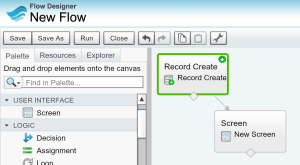
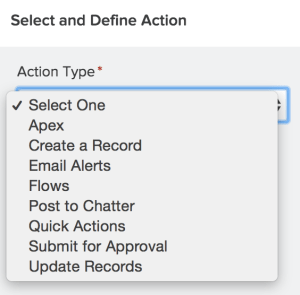
  • Power up with both! If you look closely at the screenshot above, you’ll see that Flows, short for Visual Workflow, can be selected as an Action Type within Process Builder! In this case your Flow cannot contain any visual steps, only logic steps, since Process Builder is not a UI tool. Such Flows are known as Autolaunched Flows (previously known as ‘Headless Flows’), you can read more here. This capability allows you to model more complex business processes in Process Builder.

You can read more details on further differences here from Salesforce.

What parts of your code should you expose?

Both tools have the ability to integrate at a record level with your existing custom objects, thus any logic you’ve placed in Apex Triggers, Validation Rules etc is also applied. So as you read this, your already extending these tools! However such logic is of course related to changes in your solutions record data. What about other logic?

  • Custom Buttons, Visualforce Buttons, If you’ve developed a Custom Button or Visualforce page with Apex logic behind it you may want to consider if that functionality might also benefit from being available through these tools. Allowing automation and/or alternative UI’s to be build without the need to involve a custom Visualforce or Apex development or changes to your based solution.
  • Share Calculations and Sub-Process Logic, You may have historically written a single peace of Apex code that orchestrates in a fixed a larger process via a series of calculations in a certain order and/or chains together other Apex sub-processes together. Consider if by exposing this code in a more granular way, would give users more flexibility in using your solution in different use cases. Normally this might require your code to respond to a new configuration you build in. For example where they wish to determine the order your Apex code is called, if parts should be omitted or even apply the logic to record changes on their own Custom Objects.

Design considerations for Invocable Methods

Now that we understand a bit more about the tools and the parts of your solution you might want to consider exposing, lets consider some common design considerations in doing so. The key to exposing Apex code to these tools is leveraging a new Spring’15 feature known as Invocable Methods. Here is an example i wrote recently…

global with sharing class RollupActionCalculate
{
	/**
	 * Describes a specific rollup to process
	 **/
	global class RollupToCalculate {

		@InvocableVariable(label='Parent Record Id' required=true)
		global Id ParentId;

		@InvocableVariable(label='Rollup Summary Unique Name' required=true)
		global String RollupSummaryUniqueName;

		private RollupService.RollupToCalculate toServiceRollupToCalculate() {
			RollupService.RollupToCalculate rollupToCalculate = new RollupService.RollupToCalculate();
			rollupToCalculate.parentId = parentId;
			rollupToCalculate.rollupSummaryUniqueName = rollupSummaryUniqueName;
			return rollupToCalculate;
		}
	}

	@InvocableMethod(
		label='Calculates a rollup'
		description='Provide the Id of the parent record and the unique name of the rollup to calculate, you specificy the same Id multiple times to invoke multiple rollups')
	global static void calculate(List<RollupToCalculate> rollupsToCalculate) {

		List<RollupService.RollupToCalculate> rollupsToCalc = new List<RollupService.RollupToCalculate>();
		for(RollupToCalculate rollupToCalc : rollupsToCalculate)
			rollupsToCalc.add(rollupToCalc.toServiceRollupToCalculate());

		RollupService.rollup(rollupsToCalc);
	}
}

NOTE: The use of global is only important if you plan to expose the action from an AppExchange package, if your developing a solution in a Sandbox for deployment to Production, you can use public.

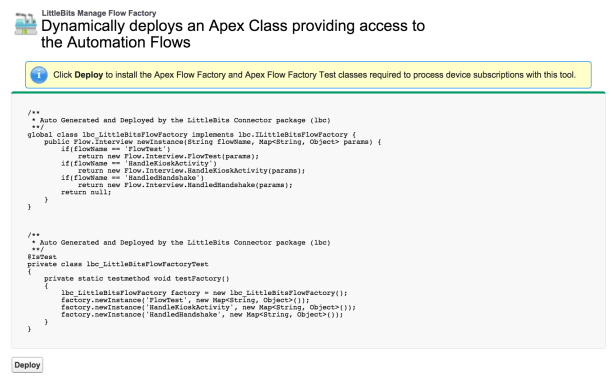
As those of you following my blog may have already seen, i’ve been busy enabling my LittleBits Connector and Declarative Lookup Rollup Summary packages for these tools. In doing so, i’ve arrived at the following design considerations when thinking about exposing code via Invocable Methods.

  1. Design for admins not developers. Methods appear as ‘actions’ or ‘elements’ in the tools. Work with a few admins/consultants you know to sense check what your exposing make sense to them, a method name or purpose from a developers perspective might not make as much sense to an admin. 
  2. Don’t go crazy with the annotations! Salesforce has made it really easily to expose an Apex method via simple Apex annotations such as @InvocableMethod and @InvocableVariable. Just because its that easy doesn’t mean you don’t have to think carefully about where you apply them. I view Invocable Methods as part of your solutions API, and treat them as such, in terms of separation of concerns and best practices. So i would not apply them to methods on controller classes or even service classes, instead i would apply them to dedicate class that delegates to my service or business layer classes. 
  3. Apex class, parameter and member names matter. As with my thoughts on API best practices, establish a naming convention and use of common terms when naming these. Salesforce provides a REST API for describing and invoking Invocable Methods over HTTP, the names you use define that API. Currently both tools show the Apex class name and not the label, so i would derive some kind of way to group like actions together, i’ve chosen to follow the pattern [Feature]Action[ActionName], e.g. LittleBitsActonSendToDevice, so all actions for a given feature in your application at least group together. 
  4. Use the ‘label’ and ‘description’ annotation attributes. Both the @InvocableMethod and @InvocableVariable annotations support these, the tools will show your label instead of your Apex variable name in the UI. The Process Builder tool currently as far as i can see does not presently use the parameter description sadly (though Visual Workflow does) and neither tool the method description. Though i would recommend you define both in case in future releases that start to use it.
    • NOTE: As this text is end user facing, you may want to run it past a technical author or others to look for typos, spelling etc. Currently, there does not appear to be a way to translate these via Translation Workbench.


  5. Use the ‘required’ attribute. When a user adds your Invocable Method to a Process or Flow, it automatically adds prompts in the UI for parameters marked as required.
    	global class SendParameters {
    		@InvocableVariable(
                       Label='Access Token'
                       Description='Optional, if set via Custom Setting'
                       Required=False)
    		global String AccessToken;
    		@InvocableVariable(
                      Label='Device Id' Description='Optional, if set via Custom Setting'
                      Required=False)
            global String DeviceId;
    		@InvocableVariable(
                       Label='Percent'
                       Description='Percent of voltage sent to device'
                       Required=True)
            global Decimal Percent;
    		@InvocableVariable(
                       Label='Duration in Milliseconds'
                       Description='Duration of voltage sent to device'
                       Required=True)
            global Integer DurationMs;
    	}
    
        /**
         * Send percentages and durations to LittleBits cloud enabled devices
         **/
        @InvocableMethod(Label='Send to LittleBits Device' Description='Sends the given percentage for the given duration to a LittleBits Cloud Device.')
        global static void send(List<SendParameters> sendParameters) {
        	System.enqueueJob(new SendAsync(sendParameters));
    	}
    

    Visual Workflow Example
    FlowParams

    Lightning Process Builder Example
    ProcessBuilderParams


  6. Bulkification matters, really it does! Play close attention to the restrictions around your method signature when applying these annotations, as described in Invocable Method Considerations and Invocable Variables Considerations. One of the restrictions that made me smile was the insistence on the compiler requiring parameters be list based! If you recall this is also one of my design guidelines for the Apex Enterprise Patterns Service layer. Basically because it forces the developer to think about the bulk nature of the platform. Salesforce have thankfully enforced this, to ensure that when either of these tools call your method with multiple parameters in bulk record scenarios your strongly reminded to ensure your code behaves itself! Of course if your delegating to your Service layer, as i am doing in the examples above, this should be a fairly painless affair to marshall the parameters across.
    • NOTE: While you should of course write your Apex tests to pass bulk test data and thus test your bulkification code. You can also cause Process Builder and Visual Workflow to call your method with multiple parameters by either using List View bulk edits, Salesforce API or Anonymous Apex to perform a bulk DML operation on the applicable object. 
  7. Separation of Concerns and Apex Enterprise Patterns. As you can see in the examples above, i’m treating Invocable Actions as just another caller of the Service layer (described as part of the Apex Enterprise Patterns series). With its own concerns and requirements.
    • For example the design of the Service method signatures is limited only by the native Apex language itself, so can be quite expressive. Where as Invocable Actions have a much more restricted capability in terms of how they define themselves, we want to keep these two concerns separate.
    • You’ll also see in my LittleBits action example above, i’m delegating to the Service layer only after wrapping it in an Async context, since Process Builder calls the Invocable Method in the Trigger context. Remember the Service layer is ‘caller agnostic’, thus its not its responsibility to implement Aysnc on the callers behalf.
    • I have also taken to encapsulating the parameters and marshalling of these into the Service types as needed, thus allowing the Service layer and Invocable Method to evolve independently if needed.
    • Finally as with any caller of the Service layer i would expect only one invocation and to create a compound Service (see Service best practices) if more was needed, as apposed to calling multiple Services from the one Invocable Method.


  8. Do I need to expose a custom Apex or REST API as well? So you might be wondering that since we now have a way to call Apex code declaratively and in fact via the Standard Salesforce REST API (see Carolina’s exploits here). Would you ever still consider exposing a formal Apex or REST API (as described here)? Well here are some of my current thoughts on this, things are still evolving so i stress these are still my current thoughts…
    • The platform provides as REST API generated from you Invocable Method annotations, so aesthetically and functionally may look different from what you might consider a true RESTful API, in addition will fall under a different URL path to those you defined via the explicit Apex REST annotations.
    • If your data structures of your API are such that they don’t fall within those defined by Invocable Methods (such as Apex types referencing other Apex types, use of Maps, Enums etc..) then you’ll have to expose the Service anyway as an Apex API.
    • If your parameters and data structures are no more complex then those required for an Invocable Method, and thus would be identical to those of the Apex Service you might consider using the same class. However keep in mind you can only have one Invocable Method per class, and Apex Services typically have many methods related to the feature or service itself. Also while the data structure may match today, new functional requirements may stress this in the future, causing you to reinstate a Service layer, or worse, bend the parameters of your Invocable Methods.
    • In short my current recommendation is to continue to create a full expressive Service driven API for your solutions and treat Invocable Methods as another API variant.


Hopefully this has given you some useful things to think about when planning your own use of Invocable Methods in the future. As this is a very new area of the platform, i’m sure the above will evolve further over time as well.