Andy in the Cloud

From BBC Basic to Force.com and beyond…


32 Comments

More power to your Flows in Summer’14

Since an earlier blog post describing how to hookup a Flow to a Custom Button, I have been promoting this #clicksnotcode platform feature further at my local DUG and recently the Salesforce1 World Tour London and internally within FinancialForce, the response has been great.

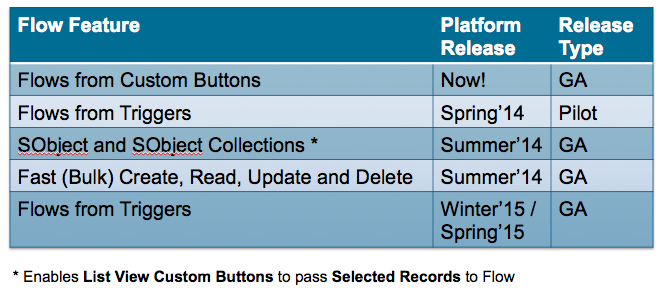
I have also been working on some new use cases showing the use of Flow from Workflow which is capability in pilot for Spring’14. Then before i knew it I had i had found even more new Flow features in my hands delivered via the upcoming Summer’14 release! You can read all about these features in the excellent Visual Workflow Implementation Guide. This blog provides step by step guide as to how I’ve explored these new features and a summary of their current and general availability. Note: The Flow Trigger functionality looks to remain in Pilot beyond Summer’14.

Flow SObject Collections Summer’14 (GA)

NewElements

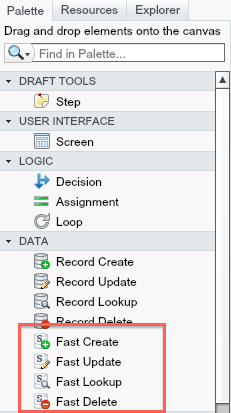
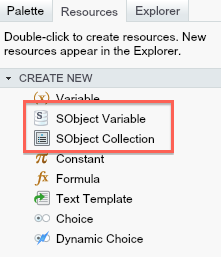
Lets take a look at two new Resource types in Flow and how they work in conjunction with four new Data elements, known as Fast Create, Fast Read, Fast Update and Fast Delete. With these new elements you can drag them onto the Flow canvas as with the previous ones. The difference is these allow you to basically manage multiple records at once, or in bulk to use Apex term.

NewVariables

The Fast prefix comes from a reflection on what you would have to have done in the past to manipulate several records of the same object. The previous alternative was to create your own loop around the existing Create element creating a single record at time. Which in general is much slower and gives greater rise to hitting platform governors around the number of database operations that can be performed in a single Flow execution. Flow is grow up for greater volumes!

EnterAmountTo illustrate these new features i decide to implement in Flow something i have previously written using Apex code. The following use case is to Apply a user entered discount to selected Quote Line Items from the Related list. The flow will prompt the user for the Discount amount and they apply it, before returning the user back to the Quote detail page.

ApplyDiscount

Here is the high level steps i took to achieve this.

  1. Created a Flow that exposes an Input only variable of type SObject Collection and used by the new  Loop and Fast Update elements to perform the calculations and update the rows passed in.
  2. Created a Visualforce page (no Apex required) that uses the standard platform Selected field to pass in the users selected records (from a List View or Related List). This was a little more Visualforce than i wanted personally, but is still a pretty good template for other use cases with minimal changes required.
  3. Created a List View Custom Button and associated it with the above Visualforce page.
  4. Edited the Quote layout to add the above button the Quote Line Items related list


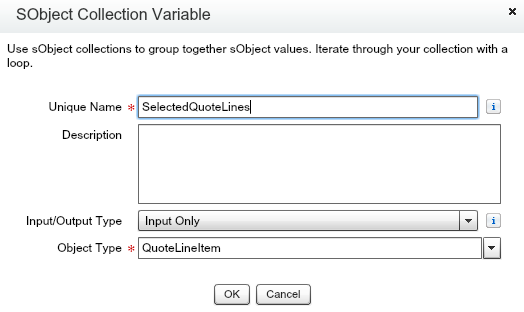
Lets take a look at the Flow I created and then I’ll go into some more detail on the Visualforce page needed to call it. First things first is to create an SObject Collection variable of the appropriate object type, in this case QuoteLineItem.

SObjectCollection

Keep a note of the Unique Name used, it will be important when we create the Visualforce page to call this flow. The next step is to loop over the SObject (or QuoteLineItem) records and apply the discount. The new Loop element is super easy to use, it has two arrows, one for each iteration and another arrow to point to the next step once all records in the collection have been processed.

ApplyDiscountFlow

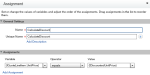
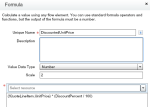
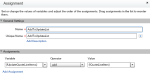
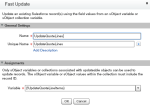
The following screenshots show the elements in more detail. The Loop element uses new SObject Variable QuoteLineItem, for each record, which allows you to operate at the field level using the existing Assignment element. I also used the existing Formula functionality in Flow to perform the discount calculation. After this i added the record to a another SObject Collection variable that i would later pass to the Fast Update method.

The Visualforce page that runs the Flow looks similar to the one i used in the previous blog to invoke a Flow from the Detail Page Custom Button. The difference is passes in multiple record from those selected by the user via the Selected binding. There is some magic above the flow:interview element that ensures the fields used by the Flow are queried by the platform, otherwise an error occurs when the Assignment steps are executed stating the UnitPrice field has not been queried (I’m open to better ways of resolving this!).

<apex:page standardController="QuoteLineItem" recordSetVar="Quotes">
    <apex:repeat value="{!Selected}" var="SelectedRow" rendered="false">
        {!SelectedRow.QuoteId}{!SelectedRow.UnitPrice}
    </apex:repeat>
    <apex:variable var="QuoteId" value="{!Selected[0].QuoteId}"/>
    <flow:interview name="ApplyDiscount" finishLocation="/{!QuoteId}">
        <apex:param name="SelectedQuoteLines" value="{!Selected}"/>
    </flow:interview>
</apex:page>

Flow Triggers via Spring’14 (Pilot)

CreateElementThe use case I chose here was one i found on IdeasExchange, it related to someone who wanted to use Workflow to create a new child record when a parent record was inserted. In this demo i create a new Task child record whenever an Account is created, this could be for example, to ensure a follow up is made on the Account. The Flow i created was insanely simple, just one Flow variable (set to Input Only) and a Create element!

RecordCreate

Once this is created in my pilot org i found a new Workflow Action, called Flow Trigger. This Workflow action allowed me to pick the Flow and define any parameters i wanted to pass in. In this case the WhatId parameter which would later be used by the Flow when populating the Task fields to associate the task with the Account being created. Finally (not shown) i linked this new Workflow Action with a Workflow Rule to try it out.

FlowTriggers
FlowTriggerEdit

Any that was it! I created a new Account and sure enough my new Task appeared, no Apex code in sight!

TaskChild

Some thoughts and observations…

  • No UI Flows. Flow’s used in this context cannot use any Screen elements, and are thus known sometimes as “Headless” flows. The platform will automatically validate for this and prevent you assigning a UI Flow to a Flow Trigger.
  • Bulkification of Flow Triggers or not? Normally when doing things at a record level Apex developers have it drummed into them to think about bulk or multiple record situations (for example Data Loader use cases) not just a single record at a time. However you will notice this was not the case above? I did expect the new SObject Collection to take a role here but not so. What Salesforce attempts to do is internally bulk insert Tasks for you by running your Flow in parallel and synchronising the executions at the time they all need to insert a record to ensure it’s done optimally. This is cleverly transparent from the Flow designer and i think intentionally so, as it is quite an advanced topic for the target user of Flow. However i do wonder how well this will stand up to more complex Flow’s. No doubt why Salesforce is being so careful over how long this remains in Pilot.

When are these features available (Safe Harbour)?

FlowRoadmap


12 Comments

MavensMate Templates and Apex Enterprise Patterns

mavensmateI’ve been using MavensMate as alternative IDE for coding on Force.com for the past 6 months and loving it more and more to be honest, it receives a strong stream of updates, feels modern, responsive (as much as the underlying platform API’s permit) and is light weight. I’m also getting to grips with the power of the Sublime Text editor (which hosts MavensMate) and it’s excellent find and replace tools for example.  Recently i’ve been working on a feature with the help of the author of this fantastic tool Joe Ferraro.

One of the cool social features of MavensMate is it’s template engine, when ever you create a Apex class, Apex trigger, Visualforce Page or Visualforce Component, you can elect to start editing from scratch or pick one of a growing number of templates, ranging from Batch Apex, Controllers, Schedulers to Unit test templates, including a new one from a new friend in the push for BDD on Force.com, Paul Hardaker (also a FinancialForce.com employee btw). The whole thing is driven by a GitHub repository, if you contribute to that repository (and your pull request is merged) your template is instantly live across the world! Now that’s a social IDE!

I set about developing templates for the Apex Enterprise Patterns and quickly bumped into a gotcha! The previous template engine only took one parameter, the name of the Metadata component (Apex class or trigger name for example). When creating Domain classes or Selectors, the name of the class and the underlying custom object is required. After a quick Twitter conversation and GitHub issue, Joe had already nailed the design for a new feature to fix this situation! You can read more about how to use it here.

DomainTemplate

I’m pleased to report it worked like a charm the first time, great design and very flexible! The templates have now been submitted and successfully merged by Joe into the repository and are now live and ready to use!

  • DomainClass
  • DomainTrigger
  • SelectorClass
  • ServiceClass

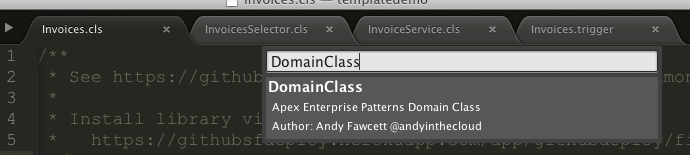
The follow screenshot shows the template selection prompt, just start typing and it narrows the options down as you go, press enter and you are prompted for the template parameters. These parameters default to examples defined in the template configuration file, overwrite these with your own following the examples as a naming convention guide. Press enter again and MavensMate will create your class and present it back to you ready for you to start editing!

NewClassTemplateParametersInvoices

If you want to see a quick from zero to Domain class demo check out my demo video below. Thanks again Joe for such a great community tool and providing great support for it!


14 Comments

Account Hierarchy Rollups #ClicksNotCode

clicksnotcodeinthesunThe Declarative Lookup Rollup Summary Tool is holding up to quite an onslaught of requirements at the moment. When this one came in, i thought it may have met its match! However it has taken just less than a day in the Spanish sunshine to get my head round it and work with the poster to find a solution!

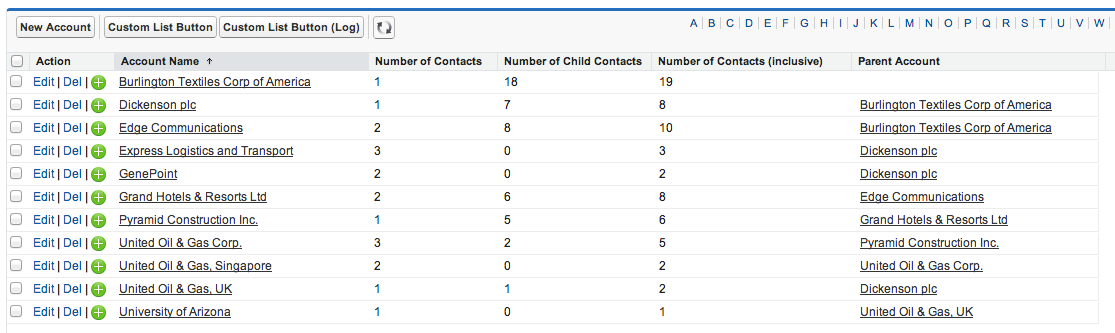
Use Case: Rollup a Count of Contacts to the related Account (which is pretty straight forward rollup for the tool), but then within the Account hierarchy rollup a Sum of Account Contacts at each level, so each Account shows the total Contacts for itself and all its child Accounts. The Number of Contacts (Inclusive) field shown below shows the Contact count rolled up at each level in the Account hierarchy. Burlington Textiles is the root account in this case.

accountrollups
accounthierarchy

Having realised it is a solution to the general requirement for Account Hierarchy Rollups (or in fact any Custom Object hierarchy type relationship) i thought i would share how it was eventually achieved in true “clicks not code” style! Note that while we are rolling up Contacts per Account here, this could effectively be any numeric field on Account.

First you will need to install the Declarative Lookup Rollup Summary tool from the latest package install link here. Then in the case of Account create the following Custom Field‘s.

accountfields

  • Number of Contacts,
    Results of a Count rollup of the number of Contacts associated with an Account.
  • Number of Child Contacts,
    Results of a Sum rollup of the Number of Contacts on each child Account to the parent Account.
  • Number of Contacts (inclusive),
    Formula field that adds the above two fields together and is actually used as the Field to Aggregate when calculating the Number of Child Contacts rollup.
    numberofcontactsformula

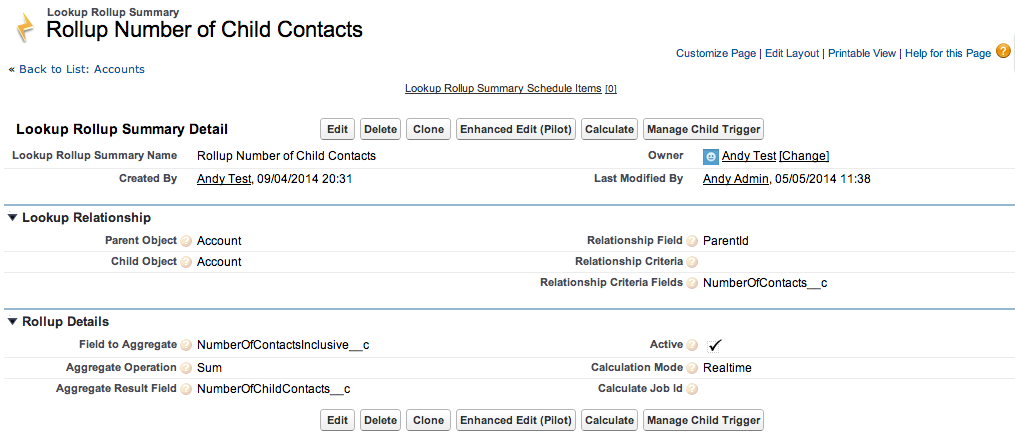
To populate these fields we are actually using two rollups, one to count the Contacts on each Account, then another to Sum the total Contacts on each child Account to each parent Account, any numeric fields on the Accounts will work the same way. Note that both these rollups are done Realtime and that the second rollup is using the Relationship Criteria Fields feature to ensure a change made by the first rollup triggers a recalculation of the second.

rollupaccountcontacts

rollupnumberofchildcontacts

Two rollups have been used here, only because the information we wanted to rollup in the Account hierarchy was not readily available on the Account record itself. So is a more complex setup than it needs to be if your just for example rolling up an existing Account field, such as Annual Revenue. However it does show nicely how two rollups can be used and have one trigger the recalculation of the other.

Scheduled Rollups: I have yet to try this with Scheduled mode, i suspect there maybe some dependency issues in the processing of two rollups in the correct order (something the tool can be taught about in the future if this is proven to be an issue), however a single independent rollup will work just fine in Scheduled or Realtime mode.


3 Comments

A Declarative Rollup Summary Tool for Force.com Lookup Relationships

I’ve recently been asked to share the motivation and vision that emerged around an open source package I’ve been developing over the last year or so. It all started with a bunch of code and an API looking for a problem to solve to be honest! Here I will take you through the journey that led to the Declarative Rollup Summary Tool being born and ended up helping to fill a 6 year old platform feature itch. Relating to the desire to roll up values between records related via standard Lookup fields and not just Master-Detail (where platform support already exists), the related Salesforce Idea has over 20k upvotes btw!

Read more at developer.salesforce.com

Figure1_rollup


40 Comments

New Release: Declarative Rollup Summary Tool Community Powered!

blog_chart1Since i created the Declarative Rollup Tool back in July last year, it has received some really positive feedback from Admins and Developers wanting a way to maintain that #ClickNotCode feel a little longer when faced with lack of platform support for rollup summaries between lookup relationships.

The tool is open source and free for anyone to consume as a package or deploy the code into their development or sandbox orgs using my GitSFDeploy tool, see the Readme. Because of this its not just up to me what happens to it or who contributes to it…

So the reason I have called this the Community Powered release, is because a major new feature of the release was designed and contributed by a member of the Salesforce community, Wes Weingartner (Twitter), who submitted via a Pull Request to the GitHub repository. I’ve now merged it in and uploaded it into the latest release of the managed package. So without further rambling, here is what’s in the new release…

  • Usability, Enhanced New and Edit UI for setting up Rollup Summary (Pilot)
  • Installation, Improved installation and configuration in subscriber org via Permission Sets
  • Various fixes, relating to using the Max option with Date fields and parent objects with Private Sharing configured.

Lets walkthrough these features…

Enhanced New and Edit UI

Wes raised the idea of having a nice front end page that improves the user experience when selecting the parent, child objects and related fields. In his subsequent submission he has done a great job of designing a UI that makes it much easier to setup the rollups! Here is a screenshot, which does not really do it justice in terms of just how easy it is to point and click from the dynamically updated drop down boxes instead of entering those fiddly API names!

Screen Shot 2014-04-09 at 19.17.51

Screen Shot 2014-04-09 at 19.33.13What i found really cool about his design, is that he combined entering the Child Object and Relationship Field information into one operation, the Child Object (Field) drop down automatically shows all valid child relationships for the selected  parent object you select.

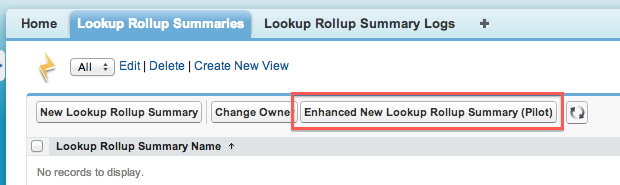
For the moment the new UI does not have all of the related information or buttons on it from the native UI, so for this release to access this enhanced UI when creating rollups, use the Enhanced New Lookup Rollup Summary (Pilot) button from the List View and for editing existing rollups there is an alternative Enhanced Edit (Pilot) button on the Detail Page.

Screen Shot 2014-04-09 at 19.17.07
Screen Shot 2014-04-09 at 19.18.11

NOTE: If your upgrading you will need to manually add these two buttons to your List View and Detail page layouts.

Installation Improvements

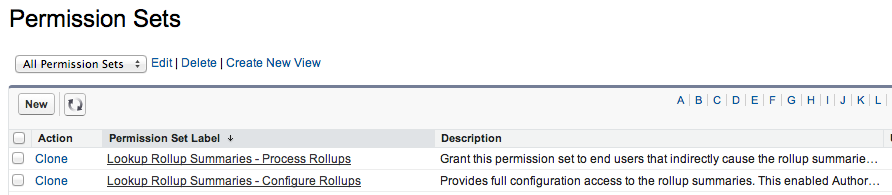
I have added two new Permission Sets to the package, this allows you to grant either the ability to Configure Rollups (for Administrators) or Process Rollups to all your users that will be editing child records that cause the rollups to be execute (either Realtime or Scheduled). Assign the Permission Sets as usual but follow the following manual permissions on a custom Permission Set or Profile (Salesforce still doesn’t package these!).

  • Lookup Rollup Summaries – Process Rollups,
    manually grant Lookup Rollup Summary App and Tab permissions accordingly.
  • Lookup Rollup Summaries – Configure Rollups,
    manually grant Lookup Rollup Summary App, Tab and Author Apex permissions accordingly.

Screen Shot 2014-04-09 at 19.59.01

Various fixes

A collection of minor fixes and improvements have been made, review the Readme release section for more details.

Installation, Documentation and Thank you!

As before see the release section of the Readme for installation options, please feel free to leave comments here and/or log any bugs or enhancement ideas in GitHub here. You can find a full list of past blogs covering the features of this tool here. Finally i would just like to say a big thank you to all the kind feedback and ideas I’ve received about this tool, it is really appreciated and motivational for me!


46 Comments

Going Native with the Apex UML Tool and Tooling API!

Screen Shot 2013-10-14 at 22.16.58 Over the last month or so, John M DanielsJames Loghry (a fellow MVP) and myself have been collaborating together in order to accomplish two things; firstly remove the need to utilise a Heroku backend for the Apex UML tool (i first launched for Dreamforce 2013). Secondly and importantly for the first objective, create an Apex wrapper around the Tooling API.

John and I first chatted about collaborating at Dreamforce 2013 to work on the Apex UML tool and move it forward. He later put forward the suggestion that we should consider utilising the Tooling API directly from Apex and do away with the Heroku code. We quickly spun up a branch to try this out, and quite quickly re-architected it to use Visualforce Remoting and started on the plumbing!

Meanwhile James and I had also started thinking about a Apex wrapper around the Tooling API, initially independently, but ultimately decided to join forces! The combination between these two initiatives and the three of us has thus far born excellent fruit, with an initial release of the Apex UML tool running totally native, powered by an early version of the Apex Tooling API…

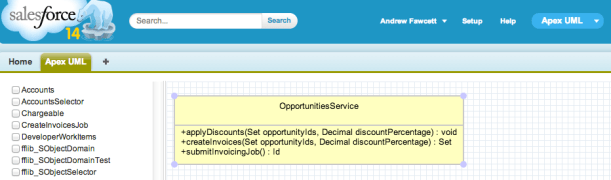
Apex UML Tool

As before there is a managed package version of the tool for you to install, you can actually upgrade from v1.2 (the Heroku Canvas app based version) directly. Unfortunately if you have v1.2 installed, you will have to upgrade at this stage, as i inadvertently deleted the Connected App from my development org.

  1. Install the package from the install links section here.
  2. Ensure your Apex classes are compiled
  3. Assign the Apex UML permission set
  4. Go to Apex Classes page and click the Compile all classes link
  5. Navigate to the Apex UML page
  6. You will see a Remote Site setting message, follow it and then reload the page.
  7. From this point on the functionality and usage is currently, as per the introduction given here.

UPDATE: Step 6 is not required if you have My Domain enabled (since v1.7).
NativeApexUML

If your interested in ideas we have for future versions of the tool take a look here, ideas always welcome!

Powered by the Apex Tooling API

Initially both James and I had the same thought on building out an Apex wrapper around the Tooling API’s SOAP variant, using the WSDL2Apex tool. However while this approach works quite well for the Metadata API, the Tooling API’s makes extensive use of xsd:extension aka polymorphic XML, for example in the querying of its SObject’s and Symbol Table.

Unfortunately the fact is that the XML deserialiser does not know how to deserialise into different types or how to access base class members. So we reached for the more flexible JSON deserializer. James discovered a cunning combination of manual JSON parsing and typed de-serialisation to get things moving! I’ll leave him to go into more detail on this. You can also read a little more about the strategy decision on the GitHub repository here and current discussions here.

Please note the API is still work in progress,  while the Apex UML tool has given it quite a good shake down so far, keep in mind the API design is still forming. Here are a few examples, starting with code to create an Apex Class

// Create an Apex class in 5 lines!
ToolingAPI toolingAPI = new ToolingAPI();
ToolingAPI.ApexCLass newClass = new ToolingAPI.ApexClass();
newClass.Name = 'HelloWorld';
newClass.Body = 'public class HelloWorld { }';
toolingAPI.createSObject(newClass);

This code queries the Symbol Table for a class and dumps the methods to the debug log…

		ToolingApi toolingAPI = new ToolingApi();
		List apexClasses = (List)
			toolingAPI.query(
				'Select Name, SymbolTable ' +
				'From ApexClass ' +
				'Where Name = \'UmlService\'').records;
		ToolingApi.SymbolTable symbolTable = apexClasses[0].symbolTable;
        for(ToolingApi.Method method : symbolTable.methods)
            System.debug(method.name);

The following is an updated version of a very early version of the API, retrieving a list of Custom Objects and Fields.

		// Constructs the Tooling API wrapper (default constructor uses user session Id)
		ToolingAPI toolingAPI = new ToolingAPI();

		// Query CustomObject object by DeveloperName (note no __c suffix required)
		List customObjects = (List)
			toolingAPI.query('Select Id, DeveloperName, NamespacePrefix From CustomObject Where DeveloperName = \'Test\'').records;

		// Query CustomField object by TableEnumOrId (use CustomObject Id not name for Custom Objects)
		ToolingAPI.CustomObject customObject = customObjects[0];
		Id customObjectId = customObject.Id;
		List customFields = (List)
			toolingAPI.query('Select Id, DeveloperName, NamespacePrefix, TableEnumOrId From CustomField Where TableEnumOrId = \'' + customObjectId + '\'').records;

		// Dump field names (reapply the __c suffix) and their Id's
		System.debug(customObject.DeveloperName + '__c : ' + customObject.Id);
		for(ToolingAPI.CustomField customField : customFields)
			System.debug(
				customObject.DeveloperName + '__c.' +
				customField.DeveloperName + '__c : ' +
				customField.Id);

This code from the Apex UML tool starts a compilation of a given Apex class to later access external references from the ApexClassMember objects SymbolTable.

		// Delete any existing MetadataContainer?
		ToolingApi tooling = new ToolingApi();
		List containers = (List)
			tooling.query(
				'SELECT Id, Name FROM MetadataContainer WHERE Name = \'ApexNavigator\'').records;
		if(containers!=null &&  containers.size()>0)
			tooling.deleteSObject(ToolingAPI.SObjectType.MetadataContainer, containers[0].Id);

		// Create MetadataContainer
		ToolingAPI.MetadataContainer container = new ToolingAPI.MetadataContainer();
		container.name = 'ApexNavigator';
		ToolingAPI.SaveResult containerSaveResult = tooling.createSObject(container);
		if(!containerSaveResult.success)
			throw makeException(containerSaveResult);
		Id containerId = containerSaveResult.id;

		// Create ApexClassMember and associate them with the MetadataContainer
		ToolingAPI.ApexClassMember apexClassMember = new ToolingAPI.ApexClassMember();
		apexClassMember.Body = classes.get(className).Body;
		apexClassMember.ContentEntityId = classes.get(className).id;
		apexClassMember.MetadataContainerId = containerId;
		ToolingAPI.SaveResult apexClassMemberSaveResult = tooling.createSObject(apexClassMember);
		if(!apexClassMemberSaveResult.success)
			throw makeException(apexClassMemberSaveResult);

		// Create ContainerAysncRequest to deploy (check only) the Apex Classes and thus obtain the SymbolTable's
		ToolingAPI.ContainerAsyncRequest asyncRequest = new ToolingAPI.ContainerAsyncRequest();
		asyncRequest.metadataContainerId = containerId;
		asyncRequest.IsCheckOnly = true;
		ToolingAPI.SaveResult asyncRequestSaveResult = tooling.createSObject(asyncRequest);
		if(!asyncRequestSaveResult.success)
			throw makeException(asyncRequestSaveResult);
		asyncRequest = ((List)
			tooling.query(
				'SELECT Id, State, MetadataContainerId, CompilerErrors ' +
				'FROM ContainerAsyncRequest ' +
				'WHERE Id = \'' + asyncRequestSaveResult.Id + '\'').records)[0];

In later blogs between us, we will be extending the demo code and more cool stuff!

Next Steps

I’m looking forward to what happens next! Both initiatives have got off to a great start and we will keep incrementing. Certainly, its good to have the Apex UML tool to help drive the development and testing of the Apex Tooling API. Follow my fellow collaborators here @JohnDTheMaven and @dancinllama.