Andy in the Cloud

From BBC Basic to Force.com and beyond…


40 Comments

New Release: Declarative Rollup Summary Tool Community Powered!

blog_chart1Since i created the Declarative Rollup Tool back in July last year, it has received some really positive feedback from Admins and Developers wanting a way to maintain that #ClickNotCode feel a little longer when faced with lack of platform support for rollup summaries between lookup relationships.

The tool is open source and free for anyone to consume as a package or deploy the code into their development or sandbox orgs using my GitSFDeploy tool, see the Readme. Because of this its not just up to me what happens to it or who contributes to it…

So the reason I have called this the Community Powered release, is because a major new feature of the release was designed and contributed by a member of the Salesforce community, Wes Weingartner (Twitter), who submitted via a Pull Request to the GitHub repository. I’ve now merged it in and uploaded it into the latest release of the managed package. So without further rambling, here is what’s in the new release…

  • Usability, Enhanced New and Edit UI for setting up Rollup Summary (Pilot)
  • Installation, Improved installation and configuration in subscriber org via Permission Sets
  • Various fixes, relating to using the Max option with Date fields and parent objects with Private Sharing configured.

Lets walkthrough these features…

Enhanced New and Edit UI

Wes raised the idea of having a nice front end page that improves the user experience when selecting the parent, child objects and related fields. In his subsequent submission he has done a great job of designing a UI that makes it much easier to setup the rollups! Here is a screenshot, which does not really do it justice in terms of just how easy it is to point and click from the dynamically updated drop down boxes instead of entering those fiddly API names!

Screen Shot 2014-04-09 at 19.17.51

Screen Shot 2014-04-09 at 19.33.13What i found really cool about his design, is that he combined entering the Child Object and Relationship Field information into one operation, the Child Object (Field) drop down automatically shows all valid child relationships for the selected  parent object you select.

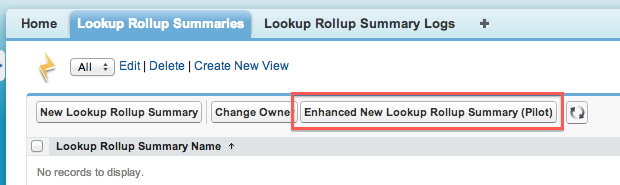
For the moment the new UI does not have all of the related information or buttons on it from the native UI, so for this release to access this enhanced UI when creating rollups, use the Enhanced New Lookup Rollup Summary (Pilot) button from the List View and for editing existing rollups there is an alternative Enhanced Edit (Pilot) button on the Detail Page.

Screen Shot 2014-04-09 at 19.17.07
Screen Shot 2014-04-09 at 19.18.11

NOTE: If your upgrading you will need to manually add these two buttons to your List View and Detail page layouts.

Installation Improvements

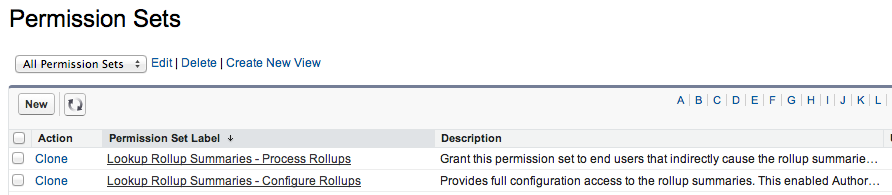
I have added two new Permission Sets to the package, this allows you to grant either the ability to Configure Rollups (for Administrators) or Process Rollups to all your users that will be editing child records that cause the rollups to be execute (either Realtime or Scheduled). Assign the Permission Sets as usual but follow the following manual permissions on a custom Permission Set or Profile (Salesforce still doesn’t package these!).

  • Lookup Rollup Summaries – Process Rollups,
    manually grant Lookup Rollup Summary App and Tab permissions accordingly.
  • Lookup Rollup Summaries – Configure Rollups,
    manually grant Lookup Rollup Summary App, Tab and Author Apex permissions accordingly.

Screen Shot 2014-04-09 at 19.59.01

Various fixes

A collection of minor fixes and improvements have been made, review the Readme release section for more details.

Installation, Documentation and Thank you!

As before see the release section of the Readme for installation options, please feel free to leave comments here and/or log any bugs or enhancement ideas in GitHub here. You can find a full list of past blogs covering the features of this tool here. Finally i would just like to say a big thank you to all the kind feedback and ideas I’ve received about this tool, it is really appreciated and motivational for me!


31 Comments

Clicks not Code with Visual Flow Custom Buttons

officehoursI attended an MVP Office Hours event last Friday which has lead to this blog. If your not aware this a weekly event run by fellow MVP’s Jarrod Kingston and Joshua Hoskins, which is a kind of open hour for anybody to pose admin or developer related questions to the MVP community. Last weeks was a great learning event for all involved, i would recommend dropping by, even if its just to ease drop, though there is no reason to be shy!

One question that was raised, was as if a Workflow Rule defined on an Opportunity Product Line could be started via a Custom Button at the Opportunity level. When clicked would effectively update the lines to run the Workflow Rule, in this case an Email Workflow. Ideally without JavaScript or having to resort to Apex. So can record, create, read, update and delete be done in a code free way? Read on...

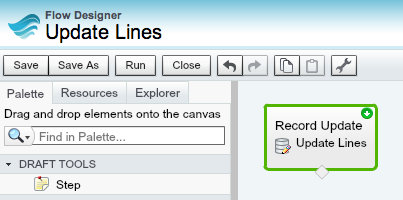
FlowUpdateBeing very excited about the possibility of invoking the hugely under stated Visual Flow rules from a Workflow Rule in Spring’14 (Pilot only). I pretty much have Flow on my mind at the moment! So started pondering if any of the Flow “elements” that are capable of reading and writing to custom object records would do the trick? Since i knew we already run a Flow from a Custom Button. I continued to ponder after the call and today managed to confirm that it is indeed possible accomplish the requirement with a astonishingly simple Flow, in fact so simple its one element!

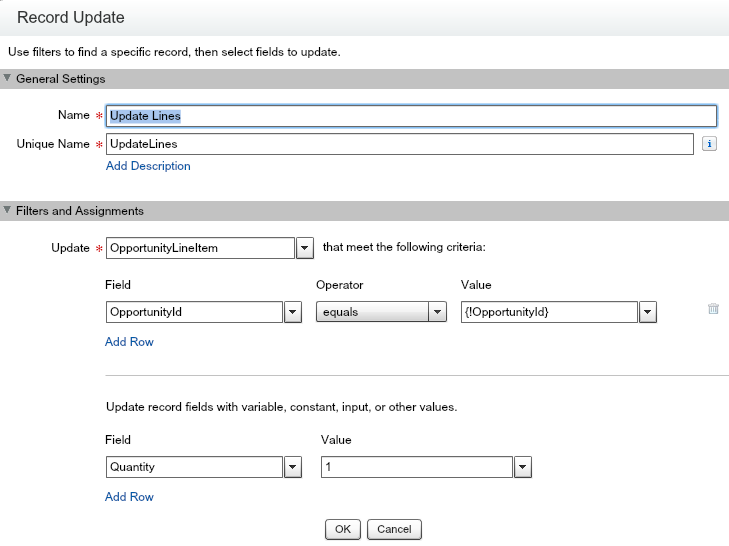
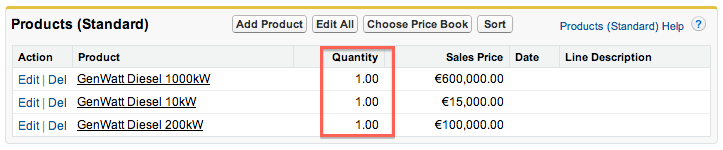
The Record Update flow element allows you to query a Standard or Custom object with some criteria and then update the results rows based on fixed or variable values you define (again via the point and click Flow Designer). My test was simple, could i set the Quantity to 1 for all the lines, though much more complex filtering and updates are possible. The configuration of the Update Lines element looks like this.

recordupdate

The {!OpportunityId} expression refers to a Flow variable, which i would later populate from my Custom Button. As you can see both the Filters and Assignments support addition rows, so this example is really a very basic one. Note that it has none of the Screen or Choice elements Flow supports, its just performing an update action, that’s all. Making sure i set it as the Start element by hovering over it and click the green icon. I then saved and started to figure out the best way to go about running it from a Custom Button.

The first option i looked at was the URL option, via a URL Custom Button, this was easy enough and i could pass the OpportunityId parameter via a a URL parameter. The issue with this, is when the Flow completes returning the user to the Opportunity page. The solution eventually was to wrap the Flow in a small Visualforce page (so ok i tiny bit of code i confess, but you really don’t have to touch this at all after you create it) then point the Custom Button to that instead.

<apex:page standardController="Opportunity">
    <flow:interview name="UpdateLines" finishLocation="/{!Opportunity.Id}">
        <apex:param name="OpportunityId" value="{!Opportunity.Id}"/>
    </flow:interview>
</apex:page>

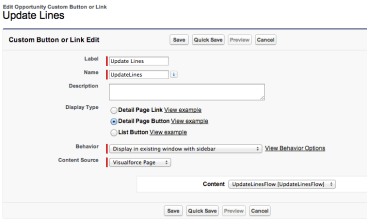
updateflowcustomb

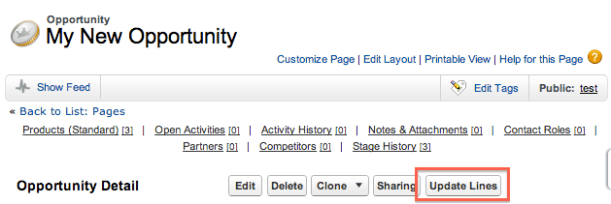
This allowed me to use the finishLocation attribute to define a URL that the Flow would navigate to after it completed. Since I have no “visual” aspects to my Flow, it simply executed the Update Records element and performed the redirect back to Opportunity detail page immediately. So once i defined my button and put it on the layout, i was ready to give it a go! 

It works great, really well in fact!

flowbutton

opplines

NOTE: If your concerned about security regarding CSRF, technically the recommendation above would be to present the user with a Flow Screen element asking them to confirm before proceeding. I’ve left this out here as i know its not always everyones preference visually to have what might be viewed as a annoying confirmation prompt following the button press.

Flow supports other data manipulation elements (in addition to many UI elements), such as Lookup, Create and Delete you can configure using its drag and drop editor. So if you fancy an alternative to hacking around with JavaScript Custom Buttons or want to avoid needing developers to write you Apex code for simple updates, i recommend you try this out (there is a great two part blog here and here and also workbook).

Certainly once Salesforce unleash (the both exciting and slightly scary) power of using these from Workflow Rules, you’ll be missing out on a significant new “Clicks Not Code” trick if you don’t! 

Detailed Steps to Recreate above Demo

  1. Under Setup menu, under Workflow and Approvals, click Flows.
  2. Create a new Flow and drag the Update Records element from the palette and give it a name (anything will do) and description.
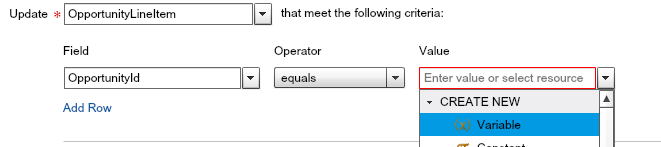
  3. Complete the Update Record element configuration as shown above, when prompted for the Value to select by the OpportunityId, click the drop down menu and select CREATE NEW Variable.
    createvar
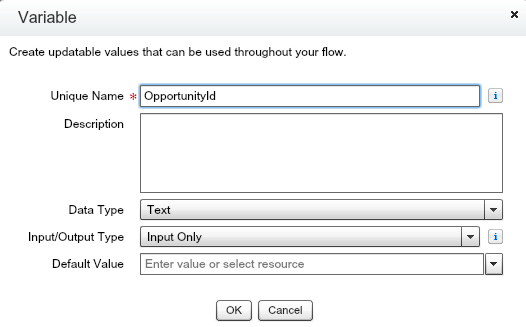
  4. Complete the Variable element configuration as shown below, take note to enter the variable name correctly, this will be referenced on the Visualforce page used to run the flow.
    varconfig
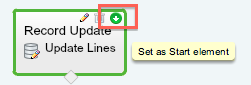
  5. Click to highlight the Update Records element on the Flow design canvas, then click the green icon in its top right corner to make this element the Start element.
    startelm
  6. Save the Flow and make it Active (clicking the Activate link next to it on the Flow detail page), take note of the Flow name used (defaults to the description with underscores for spaces).
  7. Create a Visualforce page via Setup, then Develop, then Pages, paste in the sample Visualforce page shown above, taking note to use correct Flow name and Flow parameter names.
  8. Create a Custom Button as shown in the screenshot above and add it to the Layout
  9. Press the button and enjoy your code free creation!


118 Comments

New Release: Spring’14 Declarative Rollup Summary Tool

blog_chart1Well it has been under development for few weekends now, but I’m finally announcing the latest release of this tool. But before I go into the details of installing it and whats in it, i want to thank everyone who has shared feedback and encouragement with me via tweets, GitHub and comments on the original post, all of which has been a huge motivation for me!


This release completes the feature set i set out in my original post as well as some bug fixes.

  • New Feature: Scheduled calculation mode (alternative to the existing Realtime mode)
  • New Feature: Calculate button to run a full rollup calculation on existing data
  • New Feature: Developer API, for embedding calculations in existing Apex Triggers
  • Bug Fix: Realtime mode, improved optimisation to monitor rollup criteria fields and re-parenting

The tool now also has its own Application in the drop down containing the original tab and a new one.

RollupToolSpring14

New Feature : Scheduled Calculation Mode

For those that prefer to differ the lookup calculations, perhaps for performance or governor reasons (see below), you can now choose Scheduled from the Calculation Mode field. This requires a small Apex Trigger as per the previous release, it’s super easy, no developers required, just click the Manage Child Trigger button.  Then simply schedule the job using the standard Schedule Apex button under Setup then Apex Classes, the Apex Class is RollupJob.

Once this mode is enabled, you will see the new related list, Lookup Rollup Summary Schedule Items (as shown above) will fill up as child records are added, deleted or updated (only when lookup referenced fields are modified) with a list of parent records that are effectively queued up ready for the scheduled job to process. Once processed successfully they will be removed automatically.

If there are any errors (other triggers, validation rules etc preventing the master records being updated) you will see these in the new tab Lookup Rollup Summary Logs. Once you correct these you can remove the log entry or wait for the next scheduled execution and the log entry will automatically be removed for the effected parent record.

ScheduledErrors

Tip: Add a Workflow Email Action to this object if you want to monitor log entries against certain objects.

New Feature: Calculation of existing Records

If you implement this tool and there are existing records in your objects, you can now use the Calculate button to start a background job to retrospectively calculate the rollups (time this accordingly to your user activity). Its also useful if your changing the rollup criteria or have deactivated and are now reactivating your rollup for some reason.

RunCalculateThe button will start a job to select ALL of the records in the parent object (due to platform restrictions applying the child filter criteria), however the rollup criteria will still be applied as the rollups are calculated. If there are any issues during this process the above Lookup Rollup Summary Logs tab will list these errors, as with the scheduled mode, correct the errors and delete the log entries manually or rerun the calculate process.

New Feature: Developer API

RollupAPIIf you have developers writing Apex Triggers or other Apex processes where you would like the rollups recalculated, you can have them call the Developer API. Simply select Developer from the Calculation Mode field and any lookups that are related to the child records passed into the API will be calculated automatically (the developer does not need to know or ask you for the rollups themselves, meaning you can continue to declaratively add or update them afterwards).

The main API, is the rollup method as shown below. Though there is also API’s to invoke the Calculate and Schedule jobs. The triggerHandler method is really for use by the Apex Triggers generated by the Manage Child Triggers button. Though if your in a Apex Trigger context it will work equally well from your triggers also.

List<Opportunity> opportunities =
    [select AccountId from Opportunity where Id in :myOpportunityIds];
List<SObject> parents = (List<SObject>) dlrs.RollupService.rollup(opportunities);
update parents;

NOTE: As minimum the relationship fields must have been included in the query before passing the children to the API. Also keep in mind if you have multiple parent rollups the list of SObject’s returned will be a mix of SObject types.

Advanced Relationship Criteria Handling

CriteriaFieldsAs an optimisation the tool will only attempt to recalculate rollups if relevant fields (such as those in the Field to Aggregate or Relationship Field fields) have been modified by the user (or if a child record is added or deleted). In this new release if references to other fields are made in the Relationship Criteria field, such as the example shown here, you must also ensure to specify the field/s in the Relationship Criteria Fields field. So the tool can also monitor these fields as being changed by the user. In the example used in this blog it means that if the AccountId, Amount or the StageName fields are changed on the Opportunity by the user, the Account rollup will be recalculated (this applies to Realtime and Scheduled modes).

Installation and Upgrade

As before the full source code for the tool is open source and available via the GitHub project, however if you have installed via the previous managed package you can now upgrade to obtain the new features above. All installation links and release history can be found here. There are some post installation steps to enable some new components. If your installing for the first time you can skip these.

  1. Add the Calculate button to the layout
  2. Add the Relationship Criteria Fields and Calculate Job Id fields to the layout (as shown above)
  3. Add the Lookup Rollup Summary Schedule Items related list to the layout (as shown above, remove the New button and make Parent Id and Parent Record fields visible)
  4. Depending on the security options you took during install, you may need to enable the Declarative Lookup Rollup Summaries application and Lookup Rollup Summaries Logs tab on relevant profiles / permission sets.


Dealing with the 50k Aggregate Query Limit

If you hit this limit its likely due to the fact that you have a LOT of child records related to  some or an average most of your parent records your rolling up on. Another reason, especially if your hitting this in Realtime mode, it maybe because you have to many rollups defined to one parent (though the tool attempts to merge rollup calculations, its not always possible). In this case switching to Scheduled mode for those effected lookups is the next thing to try.

If your already running in Scheduled mode or having a governor issue with the Calculate facility, you can try reducing the number of parent records processed at a time by these jobs. For this you will find under Custom Settings, the Declarative Rollup Summary Tool settings, the default for both the scope size settings is 100 parent records, try adjusting it downwards, the jobs may take longer (more chunks to process) as a result but they will stand a better chance of completing within the current platform query governor.

Feedback and Issues

Feedback, ideas etc via comments below most welcome, please report any issues via the GitHub issues page.


87 Comments

Querying Custom Object and Field IDs via Tooling API

There are quite a few blogs describing a means to build Salesforce URL’s to standard pages for creating records, that can be applied to Custom Buttons in order to pre-populate field values when a user clicks a button. For example replacing the New button on a Related list.

IMPORTANT NOTE: The URL format Salesforce uses for the standard UI is not a supported API and thus subject to change. Though it has become quite common practice in order to improve the usability of the standard UI.

Making things a little more Robust

Other than URL format assumption, there is an area of further fragility shared amongst the solutions I’ve seen to-date. Which is how to obtain and manage the custom field Id’s needed on the URL’s (since they don’t take field API names). Either via discovering these manually or dynamically via using REGEX parsing of the HTML source code of the Salesforce standard pages. Although there is a Salesforce IdeaExchange submission to have Salesforce expose these Id’s via Apex Describe, it apparently has not been addressed… or so it would seem that is….

Tooling API support for Custom Object and Custom Fields

Probably the least obvious aspect of the Tooling API is its ability to actually query (via REST or SOAP) the CustomObject and CustomField objects (which are not accessible via Apex SOQL). As we know every object in Salesforce has an ID, this got me wondering if in this case its the same ID’s needed by the approaches used above. And thus if so, would serve as a more supported and less risky means to obtain the custom field Id’s. I have also wanted to start building out a Apex wrapper for the Tooling API for a while now. The following Apex code shows the library in action…

UPDATE: Please use the Apex code that wraps the REST version of the API in order to be compatible with the statements in this blog.

// Constructs the Tooling API wrapper (default constructor uses user session Id)
ToolingAPI toolingAPI = new ToolingAPI();

// Query CustomObject object by DeveloperName (note no __c suffix required)
List<ToolingAPI.CustomObject> customObjects = (List<ToolingAPI.CustomObject>)
     toolingAPI.query('Select Id, DeveloperName, NamespacePrefix From CustomObject Where DeveloperName = \'Test\'').records;

// Query CustomField object by TableEnumOrId (use CustomObject Id not name for Custom Objects)
ToolingAPI.CustomObject customObject = customObjects[0];
Id customObjectId = customObject.Id;
List<ToolingAPI.CustomField> customFields = (List<ToolingAPI.CustomField>)
     toolingAPI.query('Select Id, DeveloperName, NamespacePrefix, TableEnumOrId From CustomField Where TableEnumOrId = \'' + customObjectId + '\'').records;

// Dump field names (reapply the __c suffix) and their Id's
System.debug(customObject.DeveloperName + '__c : ' + customObject.Id);
for(ToolingAPI.CustomField customField : customFields)
     System.debug(
          customObject.DeveloperName + '__c.' +
          customField.DeveloperName + '__c : ' +
          customField.Id);

This results in the following list of fields and Id’s against my test custom object…

00:27:38.845 (845882069)|USER_DEBUG|[45]|DEBUG|Test__c : 01IG00000021cXoMAI
00:27:38.846 (846249350)|USER_DEBUG|[47]|DEBUG|Test__c.A_Number__c : 00NG0000009Y0I9MAK
00:27:38.846 (846305290)|USER_DEBUG|[47]|DEBUG|Test__c.Colours__c : 00NG0000009prwyMAA
00:27:38.846 (846328856)|USER_DEBUG|[47]|DEBUG|Test__c.Date__c : 00NG0000009BrnxMAC
00:27:38.846 (846513094)|USER_DEBUG|[47]|DEBUG|Test__c.Message__c : 00NG0000009Y0IOMA0
00:27:38.846 (846535746)|USER_DEBUG|[47]|DEBUG|Test__c.MultiPick__c : 00NG000000AcULrMAN
00:27:38.846 (846558753)|USER_DEBUG|[47]|DEBUG|Test__c.MyCheckbox__c : 00NG0000009Y5C8MAK
00:27:38.846 (846741056)|USER_DEBUG|[47]|DEBUG|Test__c.RichText__c : 00NG0000009XaRJMA0
00:27:38.846 (846816183)|USER_DEBUG|[47]|DEBUG|Test__c.Text__c : 00NG0000009prxwMAA

Summary

This blog serves as a means to demonstrate an initial starting point for a Apex wrapper around the Tooling API (the GitHub repo has the full code with tests to deploy direct via the usual link). Be sure to setup the appropriate Remote Site setting for the Tooling API end point (easiest way is to run the code and note the URL given in the exception). Finally a means for for the various authors of the solutions above to update their code. Enjoy!


8 Comments

Preview: Demo of Apex Code Analysis using the Tooling API and Canvas

This weekend I’ve been fleshing out the code for my second Dreamforce 2013 session. I’ve been having a lot of fun with various technologies to create the following demo which I’ve shared a short work in progress video below. The JQuery plugin doing the rendering is js-mindmap, it’s got some quirks I’ve discovered so far, but I’m sticky with it for now!

The session highlights the Tooling API via this tool which can be installed directly into your Salesforce environment via the wonderful Salesforce Canvas technology! This is proposed session abstract …

Dreamforce 2013 Session: Apex Code Analysis using the Tooling API and Canvas

The Tooling API provides powerful new ways to manage your code and get further insight into how its structured. This session will teach you how to use the Tooling API and its Symbol Table to analyse your code using an application integrated via Force.com Canvas directly into your Salesforce org — no command line or desktop install required! Join us and take your knowledge of how your Apex code is really structured to the next level!

Technologies involved so far…

I’ve also found the excellent ObjectAid Eclipse plugin (which is sadly a Java source code only tool) to explore the Tooling API data structures in much more detail than the Salesforce documentation currently offers, especially in respect to the SymbolTable structure. I’ll be sharing full code and discussing the following diagram in more detail in my session! In the meantime I’d love to know your thoughts and other ideas around the Tooling API!

Tooling API


38 Comments

How To: Call Apex code from a Custom Button

Screen Shot 2013-07-16 at 08.21.48‘How do I call Apex code from a Custom Button?’ is a simple question, however the answer is covered across various developers guides and general documentation…

Having answered a number of questions on StackExchange over the year or so I’ve been active on it, I thought I’d compile this how to guide as reference peace. Of course its littered with links to the  excellent Salesforce documentation, so please do dig into those as well.

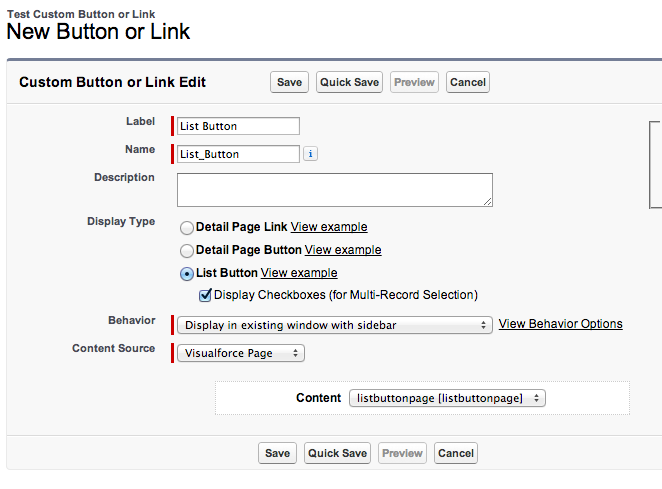
The steps are as follows to add either a Detail or a List View  button (as illustrated below) to Standard or Custom Object. It’s well worth going through the topics and general reference guides I’ve linked in more detail. I’ve given some examples of my own, but there are also plenty of them in the help topics I’ve linked to if you need more examples.

Screen Shot 2013-07-16 at 09.13.00Screen Shot 2013-07-16 at 09.12.46

Steps to Create a Custom Button that runs Apex Code

  1. Create a Apex Extension Controller class as shown in the examples below.
  2. Create a Visualforce page, using the ‘standardController‘ and ‘extensions‘ attributes on apex:page *
  3. Create a Custom Button using the Visualforce page as its Content Source
  4. Add the Custom Button to the appropriate Layout of the object
  5. Use either the ‘action‘ attribute (see warning below) or apex:commandButton‘s on your page to invoke Apex logic.


*
 You must also use the ‘recordSetVar‘ attribute on apex:page if you wish to create List View button.

Detail Page Custom Button Template

Example page and class using apex:commandButton to invoke the logic.

<apex:page standardController="Test__c" extensions="DetailButtonController">
    <apex:form >
        <apex:commandButton value="Do something" action="{!doSomething}"/>
    </apex:form>
</apex:page>

Apex controller code.

public with sharing class DetailButtonController
{
    private ApexPages.StandardController standardController;

    public DetailButtonController(ApexPages.StandardController standardController)
    {
        this.standardController = standardController;
    }

    public PageReference doSomething()
    {
        // Apex code for handling record from a Detail page goes here
        Id recordId = standardController.getId();
        Test__c record = (Test__c) standardController.getRecord();
        return null;
    }
}

Or to have your Apex logic run as soon as the user presses the Custom Button use the action attribute.

<apex:page standardController="Test__c" extensions="DetailButtonController"
           action="{!doSomething}">

To add the Custom Button should look something like this…

Screen Shot 2013-07-16 at 07.43.22

List View Custom Button Template

Example page and class, using apex:commandButton to invoke the logic.

<apex:page standardController="Test__c" extensions="ListButtonController"
           recordSetVar="TestRecords">
    <apex:form >
        <apex:commandButton value="Do something" action="{!doSomething}"/>
    </apex:form>
</apex:page>

Apex controller code.

public with sharing class ListButtonController
{
    private ApexPages.StandardSetController standardSetController;

    public ListButtonController(ApexPages.StandardSetController standardSetController)
    {
        this.standardSetController = standardSetController;
    }

    public PageReference doSomething()
    {
        // Apex code for handling records from a List View goes here
        List<Test__c> listViewRecords =
            (List<Test__c>) standardSetController.getRecords();
        List<Test__c> selectedListViewRecords =
            (List<Test__c>) standardSetController.getSelected();
        Boolean hasMore = standardSetController.getHasNext();
        return null;
    }
}

Or to have your Apex logic run as soon as the user presses the Custom Button use the action attribute.

<apex:page standardController="Test__c" extensions="ListButtonController"
           action="{!doSomething}" recordSetVar="TestRecords">

To add the Custom Button should look something like this…

Screen Shot 2013-07-16 at 07.43.58
WARNING: Use of ‘action’ attribute on apex:page and CSRF Attacks.

If you use the ‘action‘ attribute as per step 4 your Apex code will execute as soon as the Custom Button is pressed. However if your Apex code performs database updates this is considered unsecured as its possible that your code will be open to a CSRF attack. See this excellent topic from Salesforce for more information. If this is your case its better to use the apex:commandButton option and provide a confirmation button to your user before invoking your Apex code.

Since its Summer’13 release, Salesforce have started to add some support to allow us to use the ‘action’ attribute safely, which gives a better user experience since there is no need for a confirmation button. Currently however, the new ‘Require CSRF protection on GET requests‘ checkbox on the Visualforce page is only considered when the page is used to override the standard Delete button on an object. Hopefully support for Custom Button will arrive soon!

Update: 31st July 2013

Here is a great blog on sharing your Apex Controller class between Detail and List pages, Using one page and controller for both a “Detail Page Button” and a “List Button”.


42 Comments

Managing your DML and Transactions with a Unit Of Work

plumbing-equipment

A utility class I briefly referenced in this article was SObjectUnitOfWork. I promised in that article to discuss it in more detail, that time has come! Its main goals are.

  • Optimise DML interactions with the database
  • Provide transactional control
  • Simplify complex code that often spends a good portion of its time managing bulkificaiton and  ‘plumbing’ record relationships together.

In this blog I’m going to show you two approaches to creating a reasonably complex set of records on the platform, comparing the pros and cons of the traditional approach vs that using the Unit of Work approach.

Complex Data Creation and Relationships

Lets first look at a sample peace of code to create a bunch Opportunity records and related, Product, PricebookEntry and eventually OpportunityLine records. It designed to have a bit of a variable element to it, as such the number of lines per Opportunity and thus Products varies depending on which of the 10 Opportunties is being processed. The traditional approach is to do this a stage at a time, creating things and inserting things in the correct dependency order and associating child and related records via the Id’s generated by the previous inserts. Lists are our friends here!

			List opps = new List();
			List productsByOpp = new List();
			List pricebookEntriesByOpp = new List();
			List oppLinesByOpp = new List();
			for(Integer o=0; o<10; o++)
			{
				Opportunity opp = new Opportunity();
				opp.Name = 'NoUoW Test Name ' + o;
				opp.StageName = 'Open';
				opp.CloseDate = System.today();
				opps.add(opp);
				List products = new List();
				List pricebookEntries = new List();
				List oppLineItems = new List();
				for(Integer i=0; i<o+1; i++)
				{
					Product2 product = new Product2();
					product.Name = opp.Name + ' : Product : ' + i;
					products.add(product);
					PricebookEntry pbe = new PricebookEntry();
					pbe.UnitPrice = 10;
					pbe.IsActive = true;
					pbe.UseStandardPrice = false;
					pbe.Pricebook2Id = pb.Id;
					pricebookEntries.add(pbe);
					OpportunityLineItem oppLineItem = new OpportunityLineItem();
					oppLineItem.Quantity = 1;
					oppLineItem.TotalPrice = 10;
					oppLineItems.add(oppLineItem);
				}
				productsByOpp.add(products);
				pricebookEntriesByOpp.add(pricebookEntries);
				oppLinesByOpp.add(oppLineItems);
			}
			// Insert Opportunities
			insert opps;
			// Insert Products
			List allProducts = new List();
			for(List products : productsByOpp)
			{
				allProducts.addAll(products);
			}
			insert allProducts;
			// Insert Pricebooks
			Integer oppIdx = 0;
			List allPricebookEntries = new List();
			for(List pricebookEntries : pricebookEntriesByOpp)
			{
				List products = productsByOpp[oppIdx++];
				Integer lineIdx = 0;
				for(PricebookEntry pricebookEntry : pricebookEntries)
				{
					pricebookEntry.Product2Id = products[lineIdx++].Id;
				}
				allPricebookEntries.addAll(pricebookEntries);
			}
			insert allPricebookEntries;
			// Insert Opportunity Lines
			oppIdx = 0;
			List allOppLineItems = new List();
			for(List oppLines : oppLinesByOpp)
			{
				List pricebookEntries = pricebookEntriesByOpp[oppIdx];
				Integer lineIdx = 0;
				for(OpportunityLineItem oppLine : oppLines)
				{
					oppLine.OpportunityId = opps[oppIdx].Id;
					oppLine.PricebookEntryId = pricebookEntries[lineIdx++].Id;
				}
				allOppLineItems.addAll(oppLines);
				oppIdx++;
			}
			insert allOppLineItems;

Lists and Maps (if your linking existing data) are important tools in this process, much like SOQL, its bad news to do DML in loops, as you only get 150 DML operations per request before the governors blow. So we must index and list items within the various loops to ensure we are following best practice for bulkificaiton of DML as well.  If your using ExternalId fields, you can avoid some of this, but to much use of those comes at a cost as well, and your not always able to add these to all objects, so traditionally the above is pretty much the most bulkified way of inserting Opportunities.

Same again, but with a Unit Of Work…

Now thats take a look at the same sample using the Unit Of Work approach to capture the work and commit it all to the database in one operation. In this example notice first of all its a lot smaller and hopefully easier to see what the core purpose of the logic is. Most notable is that there are no maps at all, and also no direct DML operations, such as insert. 

img_strategy_targetInstead the code registers the need for an insert with the unit of work, for it to perform later via the registerNew methods on lines 8,13,19 and 24. The unit of work is keeping track of the lists of objects and is also providing a kind of ‘stitching’ service for the code, see lines 19, 23 and 24. Because it is given a list of object types when its constructed (via MY_SOBJECT) and these are in dependency order, it knows to insert records its given in that order and then follow up populating the indicated relationship fields as it goes. The result I think is both making the code more readable and focused on the task at hand.


			SObjectUnitOfWork uow = new SObjectUnitOfWork(MY_SOBJECTS);
			for(Integer o=0; o<10; o++)
			{
				Opportunity opp = new Opportunity();
				opp.Name = 'UoW Test Name ' + o;
				opp.StageName = 'Open';
				opp.CloseDate = System.today();
				uow.registerNew(opp);
				for(Integer i=0; i<o+1; i++)
				{
					Product2 product = new Product2();
					product.Name = opp.Name + ' : Product : ' + i;
					uow.registerNew(product);
					PricebookEntry pbe = new PricebookEntry();
					pbe.UnitPrice = 10;
					pbe.IsActive = true;
					pbe.UseStandardPrice = false;
					pbe.Pricebook2Id = pb.Id;
					uow.registerNew(pbe, PricebookEntry.Product2Id, product);
					OpportunityLineItem oppLineItem = new OpportunityLineItem();
					oppLineItem.Quantity = 1;
					oppLineItem.TotalPrice = 10;
					uow.registerRelationship(oppLineItem, OpportunityLineItem.PricebookEntryId, pbe);
					uow.registerNew(oppLineItem, OpportunityLineItem.OpportunityId, opp);
				}
			}
			uow.commitWork();

The MY_SOBJECT variable is setup as follows, typically you would probably just have one of these for your whole app.

	// SObjects (in order of dependency)
	private static List MY_SOBJECTS =
		new Schema.SObjectType[] {
			Product2.SObjectType,
			PricebookEntry.SObjectType,
			Opportunity.SObjectType,
			OpportunityLineItem.SObjectType };

Looking into the Future with registerNew and registerRelationship methods

Screen Shot 2013-06-09 at 15.06.11These two methods on the SObjectUnitOfWork class allow you to see into the future. By allowing you to register relationships without knowing the Id’s of records your inserting (also via the unit of work). As you can see in the above example, its a matter of providing the relationship field and the related record. Even if the related record does not yet have an Id, by the time the unit of work has completed inserting dependent records for you, it will. At this point, it will set the Id on the indicated field for you, before inserting the record.

Delegating this type of logic to the unit of work, avoids you having to manage lists and maps to associate related records together and thus keeps the focus on the core goal of the logic.

Note: If you have some cyclic dependencies in your schema, you will have to either use two separate unit of work instances or simply handle this directly using DML.

Deleting and Updating Records with a Unit Of Work…

This next example shows how the unit of work can be used in a editing scenario, suppose that some logic has taken a bunch of OpportunityLineItem’s and grouped them. You need to delete the line items no longer required, insert the new grouped line and also update the Opportunity to indicate the process has taken place.

			// Consolidate Products on the Opportunities
			SObjectUnitOfWork uow = new SObjectUnitOfWork(MY_SOBJECTS);
			for(Opportunity opportunity : opportunities)
			{
				// Group the lines
				Map<Id, List> linesByGroup = new Map<Id, List>();
				// Grouping logic
				// ...
				// For groups with more than one 1 line, delete those lines and create a new consolidated one
				for(List linesForGroup : linesByGroup.values() )
				{
					// More than one line with this product?
					if(linesForGroup.size()>1)
					{
						// Delete the duplicate product lines and caculate new quantity total
						Decimal consolidatedQuantity = 0;
						for(OpportunityLineItem lineForProduct : linesForGroup)
						{
							consolidatedQuantity += lineForProduct.Quantity;
							uow.registerDeleted(lineForProduct);
						}
						// Create new consolidated line
						OpportunityLineItem consolidatedLine = new OpportunityLineItem();
						consolidatedLine.Quantity = consolidatedQuantity;
						consolidatedLine.UnitPrice = linesForGroup[0].UnitPrice;
						consolidatedLine.PricebookEntryId = linesForGroup[0].PricebookEntry.Id;
						uow.registerNew(consolidatedLine, OpportunityLineItem.OpportunityId, opportunity);
						// Note the last consolidation date
						opportunity.Description = 'Consolidated on ' + System.today();
						uow.registerDirty(opportunity);
					}
				}
			}
			uow.commitWork();

Transaction management and the commitWork method

Database transactions is something you rarely have to concern yourself within Apex…. or do you? Consider the sample code below, in it there is a deliberate bug (line 22). When the user presses the button associated with this controller method, the error occurs, is caught and is displayed to the user via the apex:pagemessages component. If the developer did not do this, the error would be unhandled and the standard Salesforce white page with the error text displayed would be shown to the user, hardly a great user experience.

	public PageReference doSomeWork()
	{
		try
		{
			Opportunity opp = new Opportunity();
			opp.Name = 'My New Opportunity';
			opp.StageName = 'Open';
			opp.CloseDate = System.today();
			insert opp;
			Product2 product = new Product2();
			product.Name = 'My New Product';
			insert product;
			// Insert pricebook
			PricebookEntry pbe = new PricebookEntry();
			pbe.UnitPrice = 10;
			pbe.IsActive = true;
			pbe.UseStandardPrice = false;
			pbe.Pricebook2Id = [select Id from Pricebook2 where IsStandard = true].Id;
			pbe.Product2Id = product.Id;
			insert pbe;
			// Fake an error
			Integer x = 42 / 0;
			// Insert opportunity lines...
			OpportunityLineItem oppLineItem = new OpportunityLineItem();
			oppLineItem.Quantity = 1;
			oppLineItem.TotalPrice = 10;
			oppLineItem.PricebookEntryId = pbe.Id;
			insert oppLineItem;
		}
		catch (Exception e)
		{
			ApexPages.addMessages(e);
		}
		return null;
	}

However using try/catch circumvents the standard Apex transaction rollback during error conditions. “Only when all the Apex code has finished running and the Visualforce page has finished running, are the changes committed to the database. If the request does not complete successfully, all database changes are rolled back.”. Therefore catching the exception results in the request to complete successfully, thus the Apex runtime commits records that lead up to the error occurring. This results in the above code leaving an Opportunity with no lines on the database.

The solution to this problem, is to utilise a Savepoint, as described in the standard Salesforce documentation. To avoid the developer having to remember this, the SObjectUnitOfWork commitWork method creates a Savepoint and manages the rollback to it, should any errors occur. After doing so, it throws again the error so that the caller can perform its own error handling and reporting. This gives a consistant behaviour to database updates regardless of how errors are handled by the controlling logic.

Note: Regardless of using the commitWork method or manually coding your Savepoint logic, review the statement from the Salesforce documentation regarding Id’s.

Summary

As you can see between the two samples in this blog, there is significant reduction of over half the source lines when using the unit of work. Of course the SObjectUnitOfWork class does have its own processing to perform. Because it is a generic library, its never going to be as optimum as if you would write this code by hand specifically for the use case needed as per the first example.

perfect-balance

When writing Apex code, optimisation of statements is a consideration (consider Batch Apex in large volumes). However so are other things such as queries, database manipulation and balancing overall code complexity, since smaller and simpler code bases generally contains less bugs. Ultimately, using any utility class, needs to be considered on balance with a number of things and not just in isolation of one concern. Hopefully you now have enough information to decide for yourself if the benefit is worth it in respect to the complexity of the code your writing.

Unit Of Work is a Enterprise Application Architecture pattern by Martin Fowler.